

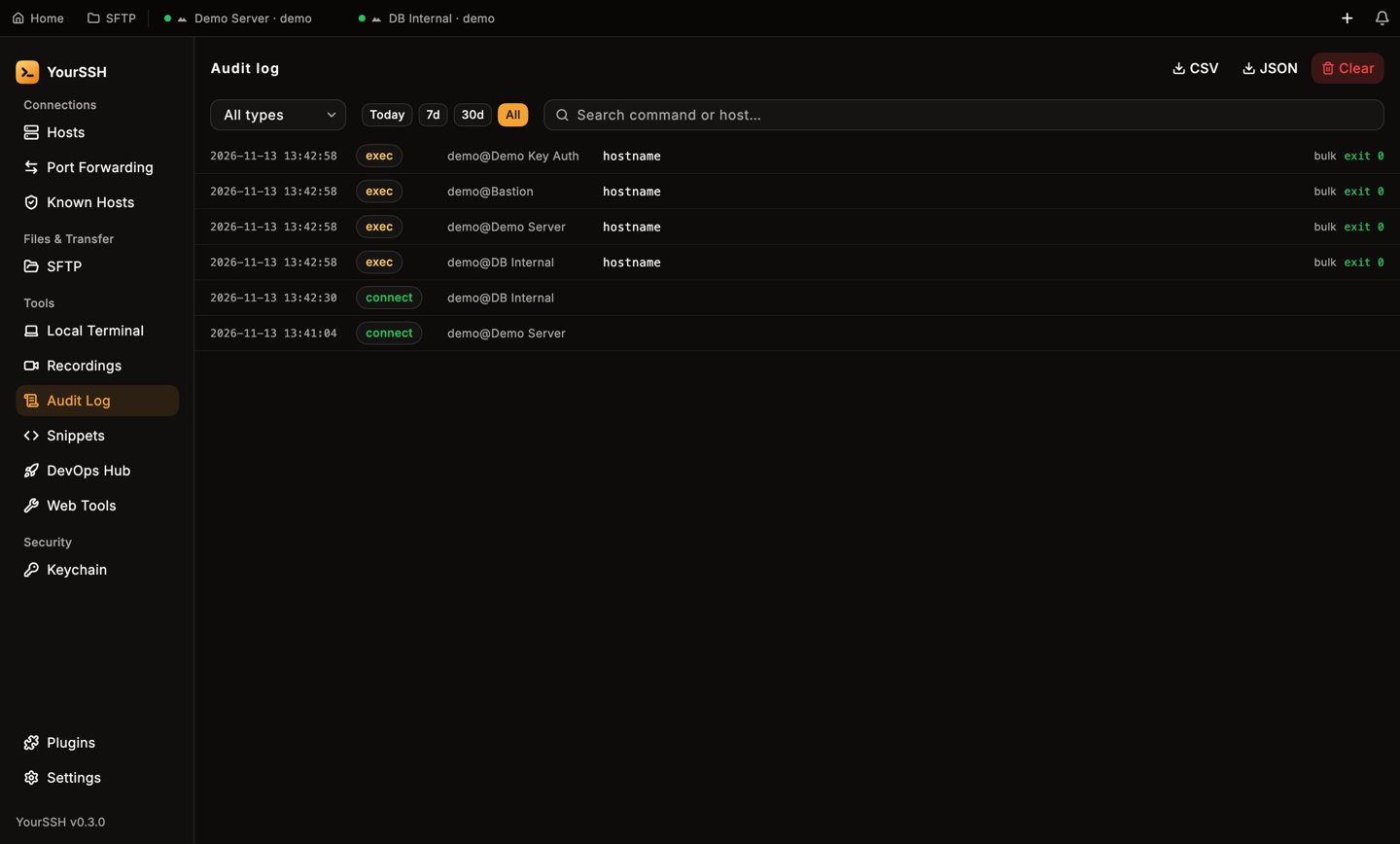
The Audit log shows the newest events first.
The log records commands sent through app features. Keystrokes you type directly into a terminal aren’t captured. For a full replay of a terminal, use session recording.
What gets recorded
Each row shows the time, a colored type chip,
user@host, the command, its source and, for commands, the exit code. The source says which feature produced the event, for example bulk for bulk actions, devops for the DevOps Hub, input-bar for the input bar, plugin:<id> for a plugin, cli or url for connections started from the command line or a yourssh:// link, and rdp or vnc for remote desktop sessions.
YourSSH leaves out its own background probes, such as the network stats overlay and OS detection, so the log stays readable.
Secret redaction
YourSSH scrubs commands before it writes them to disk. It masks:password=,token=,secret=andapi_key=values, including quoted multi-word values and prefixed forms likePGPASSWORD=Authorization: Bearertokenssshpass -p- the attached
-p<password>form ofmysqlandmariadb redis-cli -a- passwords inside URLs
Filter and search
- Pick an event type from the type menu, which starts at All types.
- Pick a time range with the Today, 7d, 30d and All chips.
- Type in Search command or host… to match the command or host name.
- Click Load more at the bottom to page through a long history.
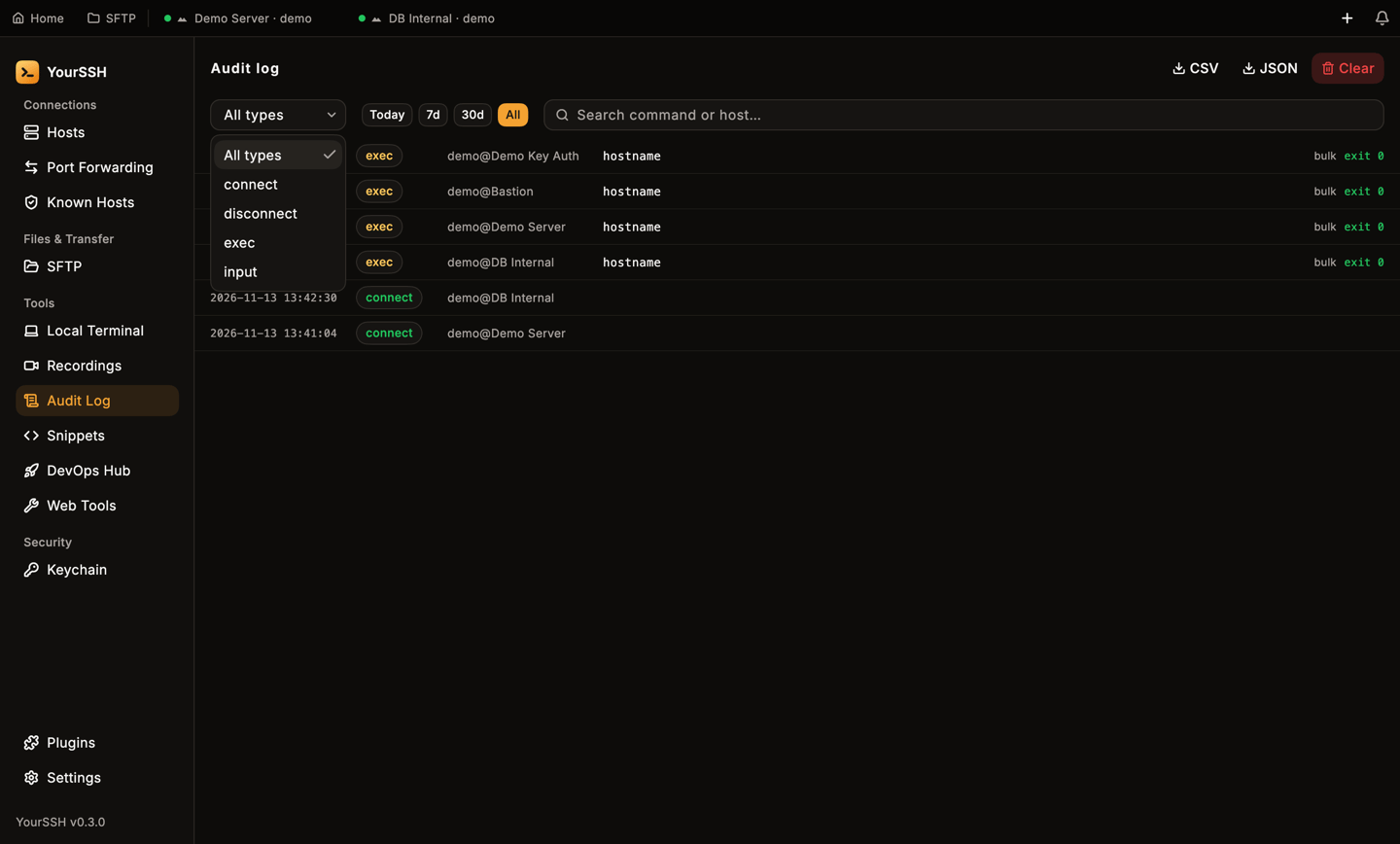
The event type menu lists All types, connect, disconnect, exec and input.
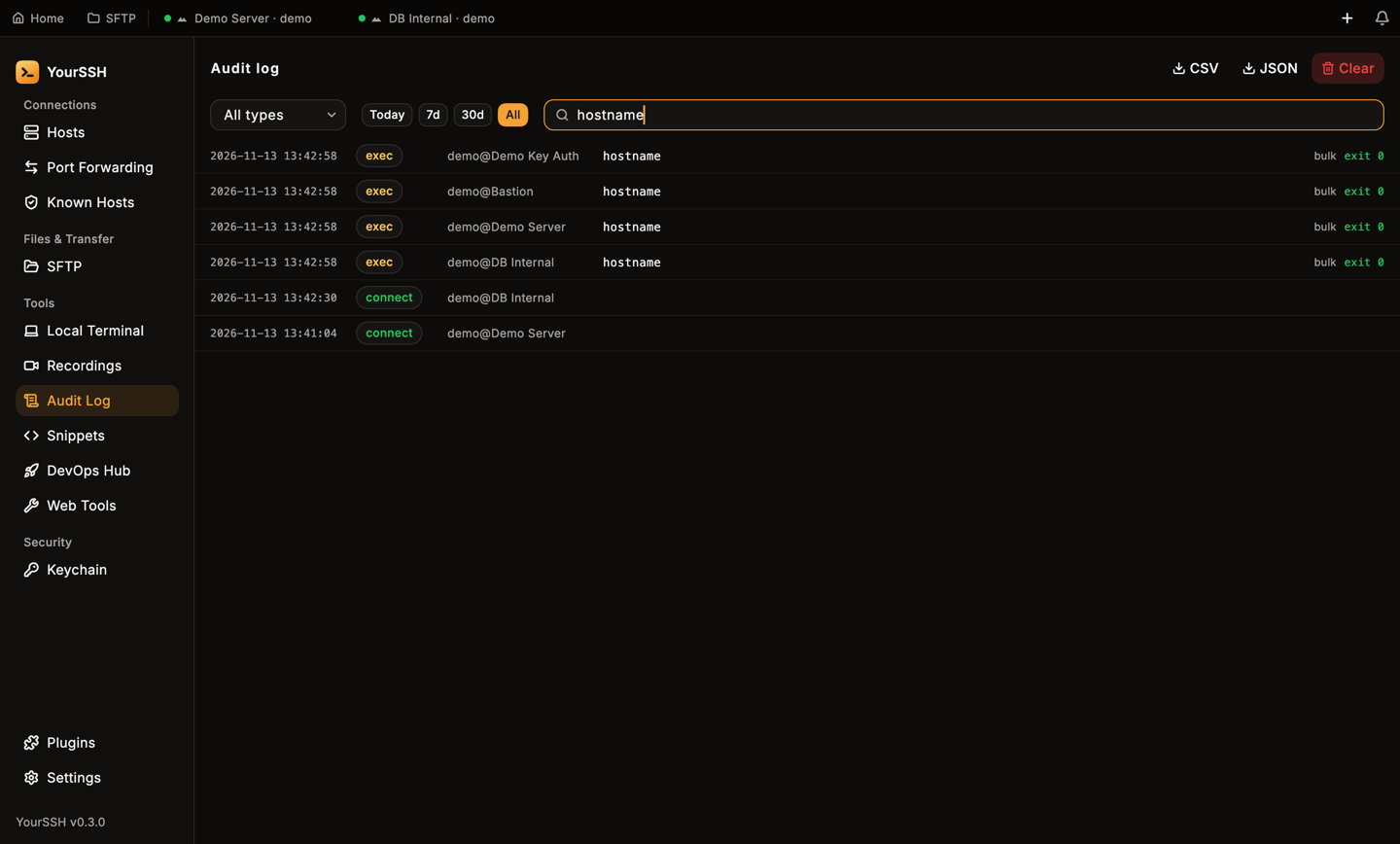
Searching for hostname narrows the list.
Export
Click CSV or JSON at the top to export what the current filter shows. A save dialog asks where to put the file, and a toast confirms the export.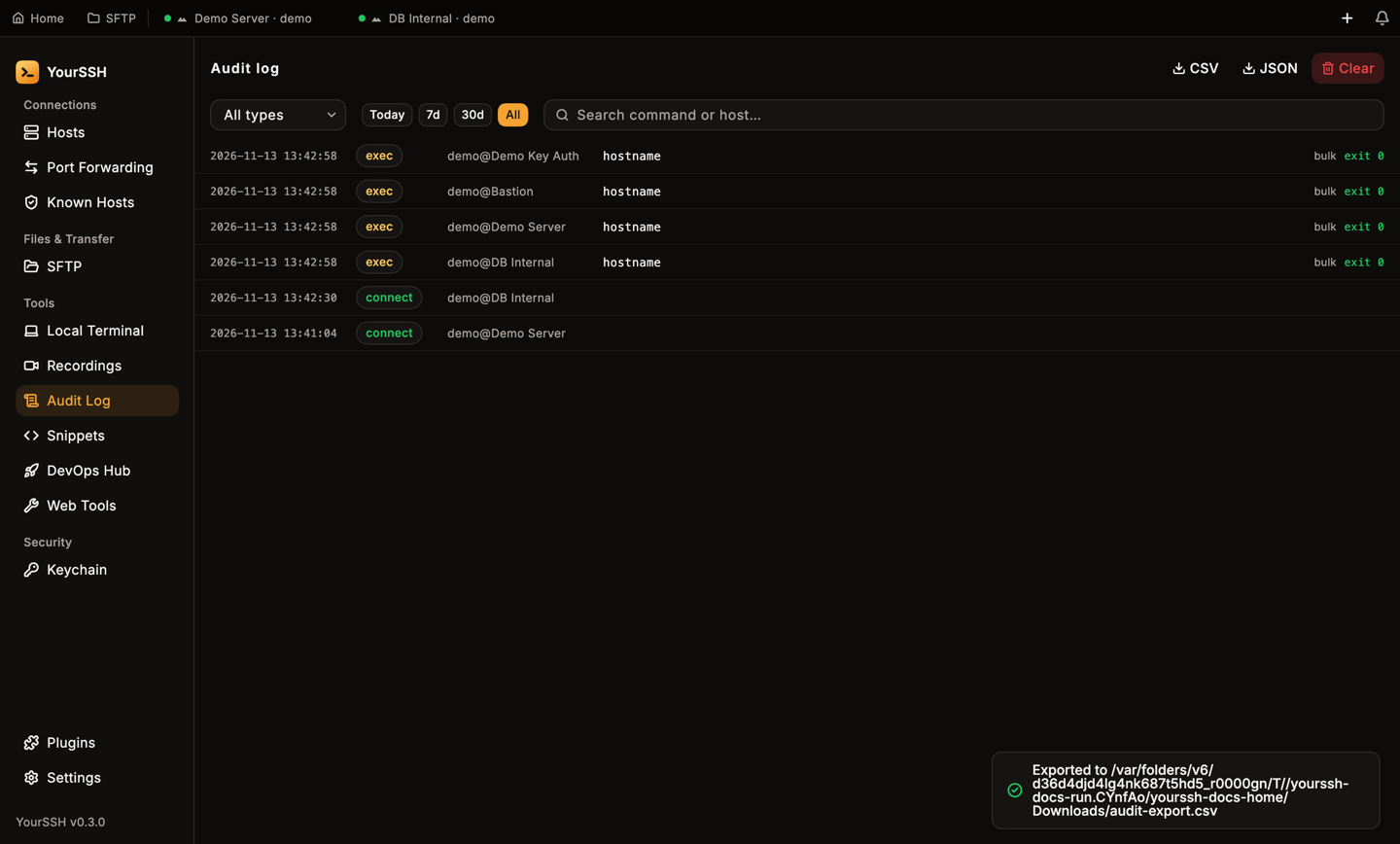
After you export, a toast confirms where the file went.
Retention and clearing
Open Settings → Audit to choose how long to keep events:30 days, 90 days (the default), 365 days or Keep forever. YourSSH deletes older events at launch.
Click Clear on the Audit log screen, or in Settings → Audit, to delete every event. YourSSH asks Clear audit log? and says all recorded events will be deleted.
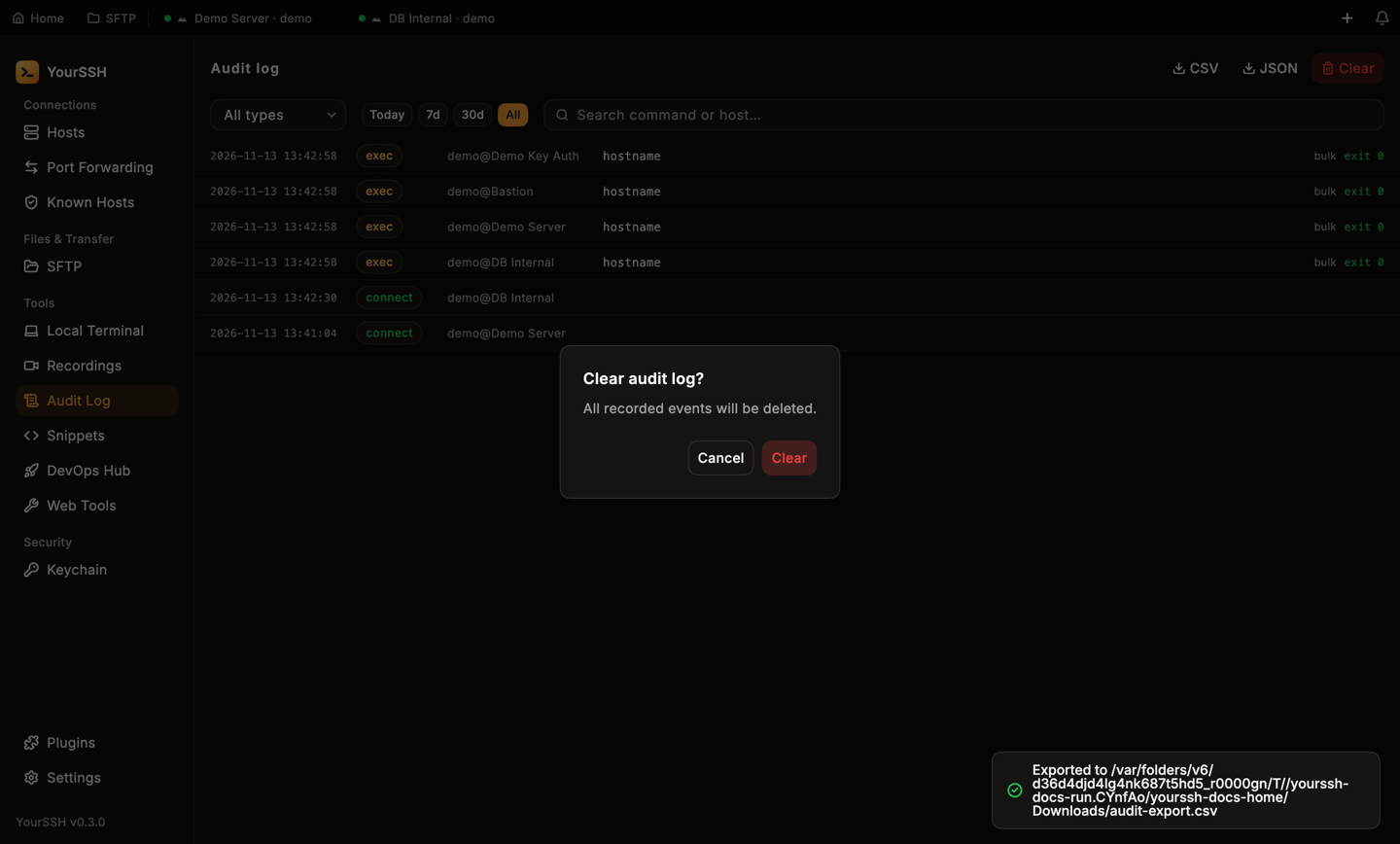
Clearing the audit log asks for confirmation.
Where it is stored
The log is a local SQLite database namedaudit.db in the app’s support folder. Only your user can read it, and it never syncs anywhere.