

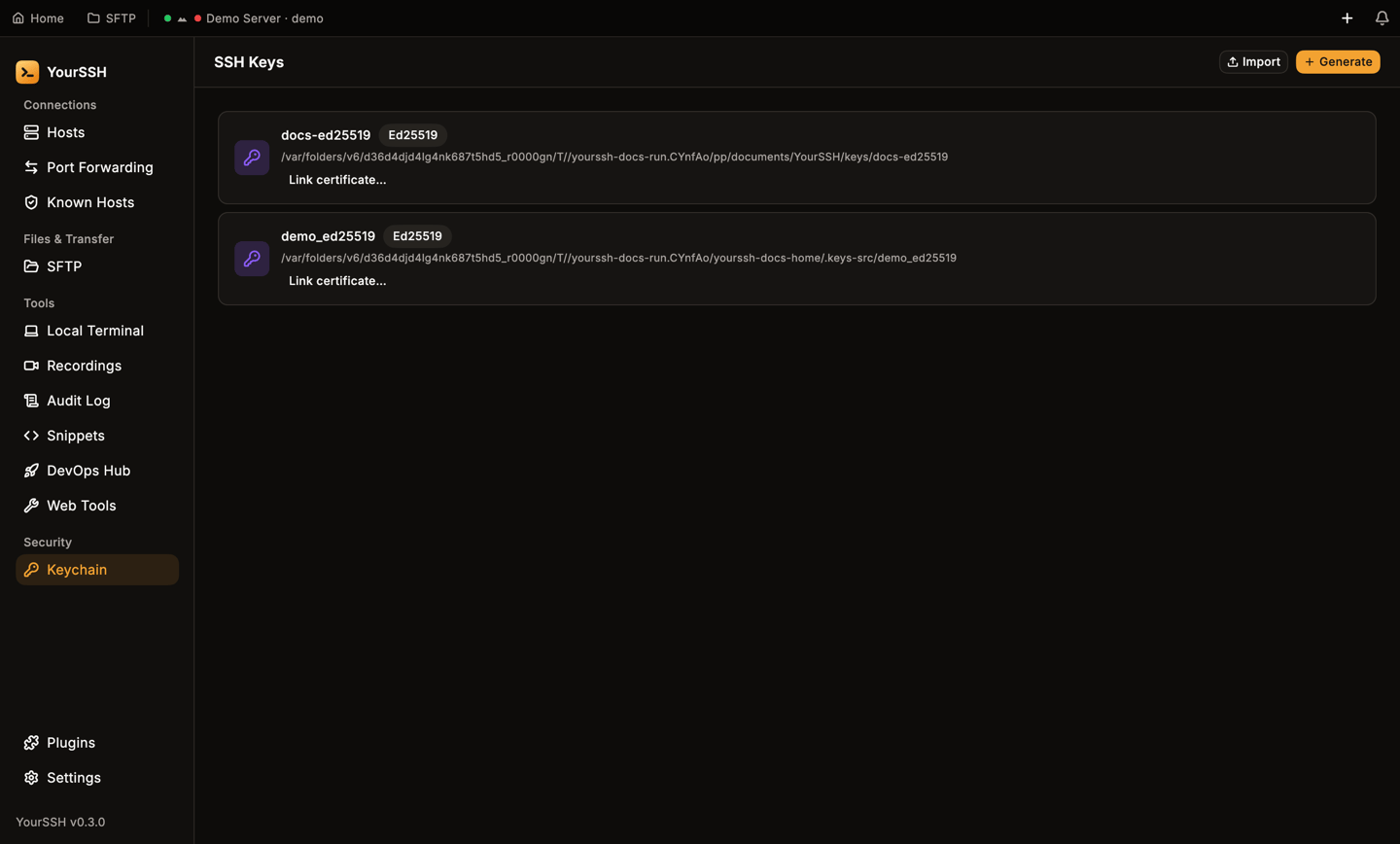
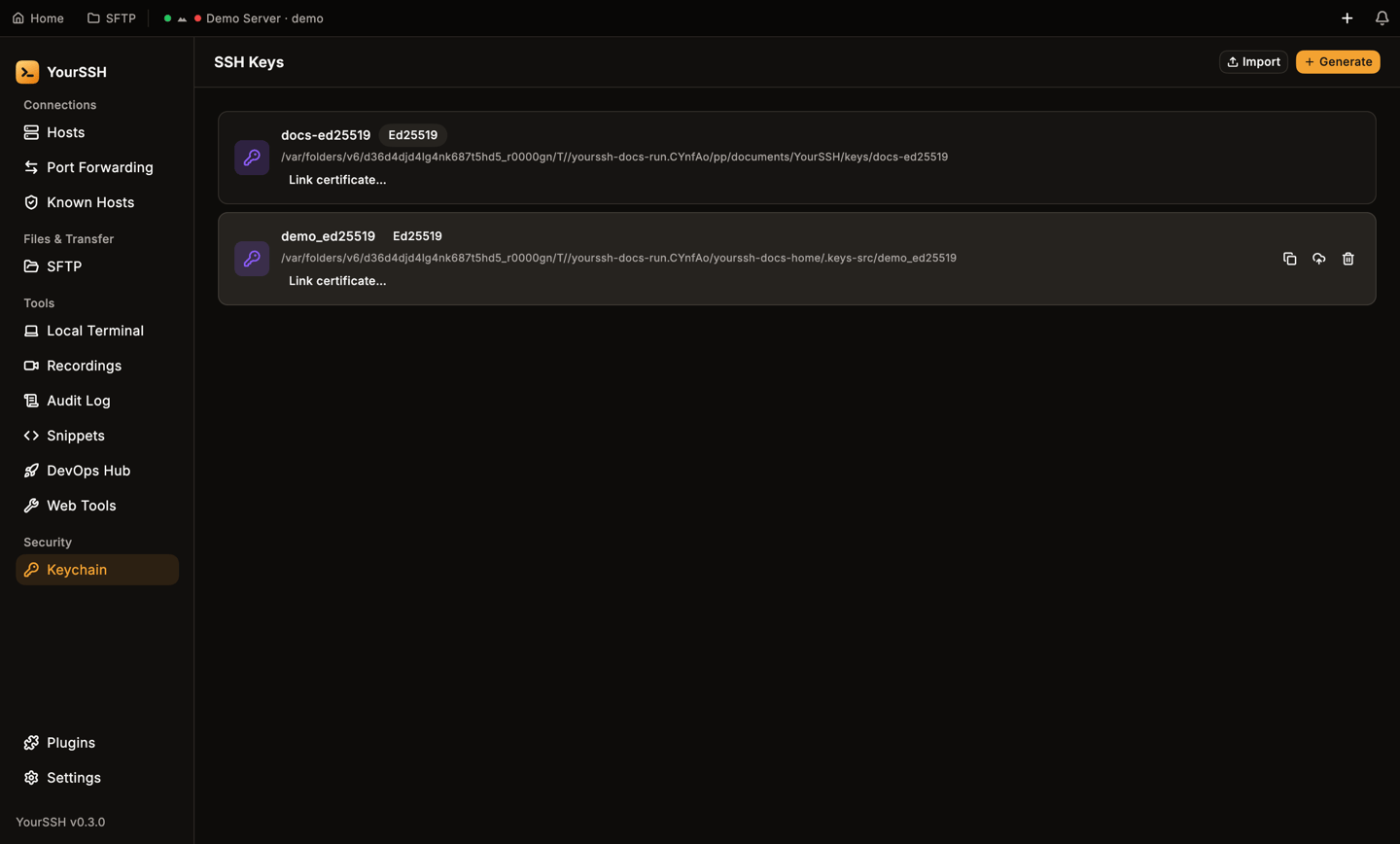
The Keychain screen, with keys shown as rows and the Import and Generate buttons at the top right.
Keys found automatically
On startup YourSSH looks in~/.ssh for the default key names id_ed25519, id_rsa, id_ecdsa and id_dsa and lists any it finds, except keys you removed from the Keychain. If a matching <name>.pub file or <name>-cert.pub certificate sits next to the key, YourSSH reads it too.
When no keys are listed, the screen says No keys added and offers Import Key and + Generate Key.
Generate a key
1
Open the panel
In Keychain, click + Generate. The Generate SSH Key panel opens on the right.
2
Name the key
Enter a Key name. The default is
id_ed25519. YourSSH replaces any character other than letters, digits, _ and - with _ in the file name.3
Pick an algorithm
Choose an Algorithm:
If
ssh-keygen isn’t installed, the RSA and ECDSA options are unavailable and the panel says RSA/ECDSA require OpenSSH client (ssh-keygen).4
Add a passphrase (optional)
Enter a Passphrase (optional), or leave it empty for a key without one. When you set one, YourSSH saves it in your system credential store so the key works without prompting you each time.
5
Generate
Click Generate Key. The panel shows the new public key with Copy public key and Done buttons.
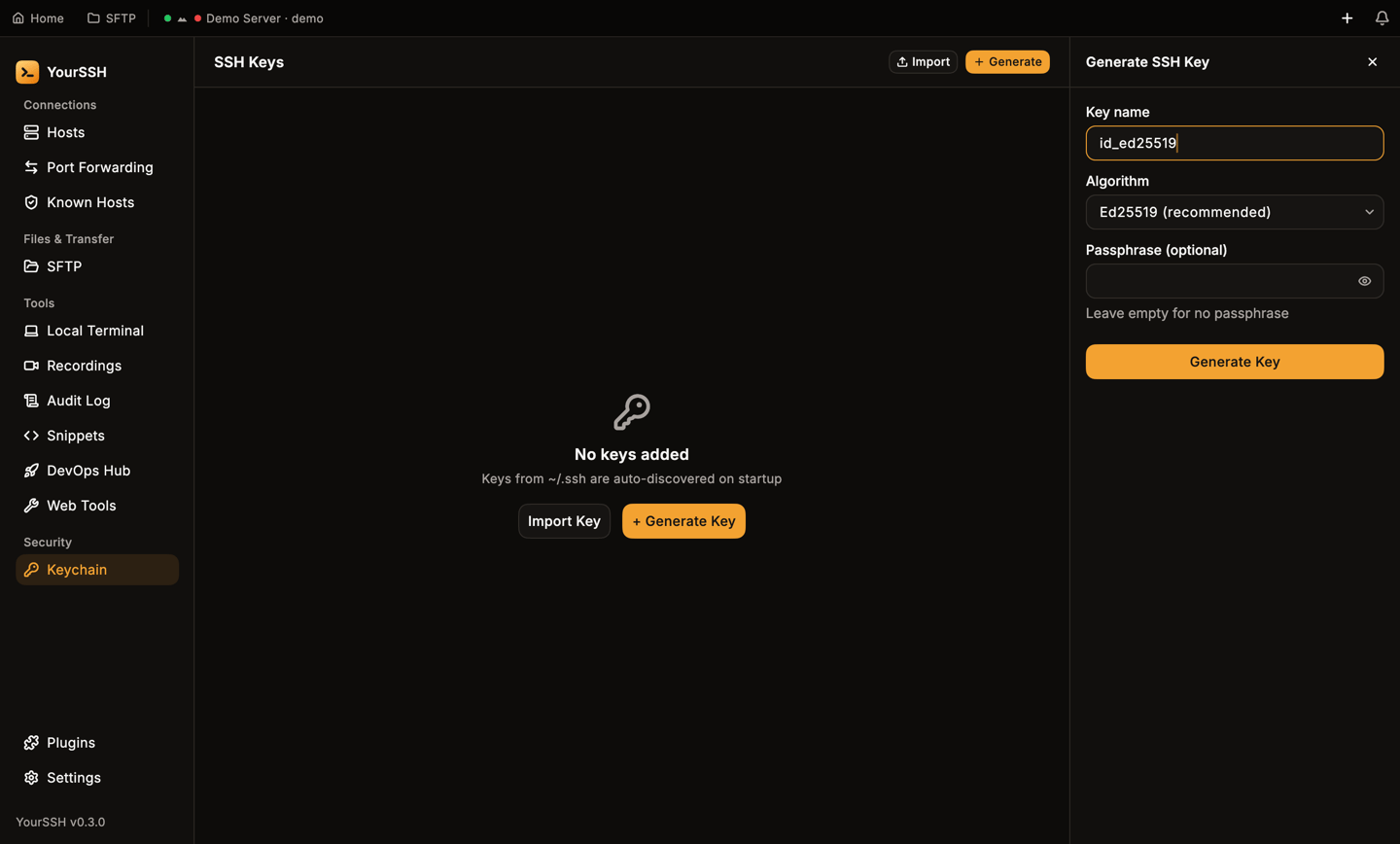
The Generate SSH Key panel. Ed25519 is the default algorithm.
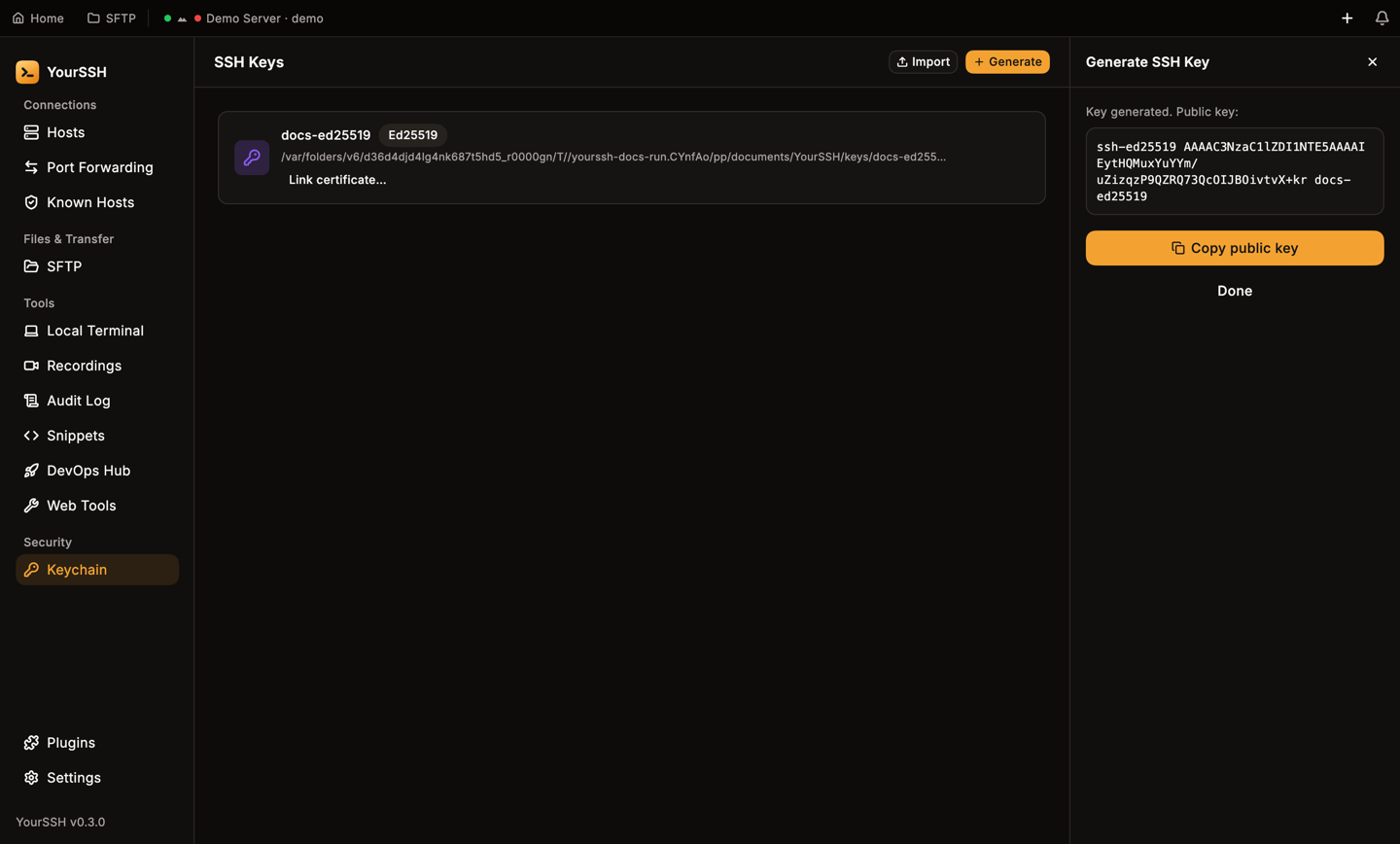
After generating, the public key is shown so you can copy it right away.
YourSSH/keys folder inside your Documents folder, as <name> (the private key) and <name>.pub. On macOS and Linux the private key file is created with mode 600 (readable only by you) before any key material is written. YourSSH refuses to overwrite an existing key with the same name and asks you to choose another.
Import a key
Click Import (or Import Key on an empty screen), then pick your private key file in the Select SSH Private Key dialog. YourSSH adds it to the list, reads the matching.pub file if there is one, and links a -cert.pub certificate if it finds one next to the key.
Link a certificate
If your hosts use SSH certificates, click Link certificate… on a key and choose the certificate file (*-cert.pub). A CERT badge appears on the key. Click the unlink button on that row to remove the link.
Copy, deploy and remove
Hover a key row to show three actions on the right.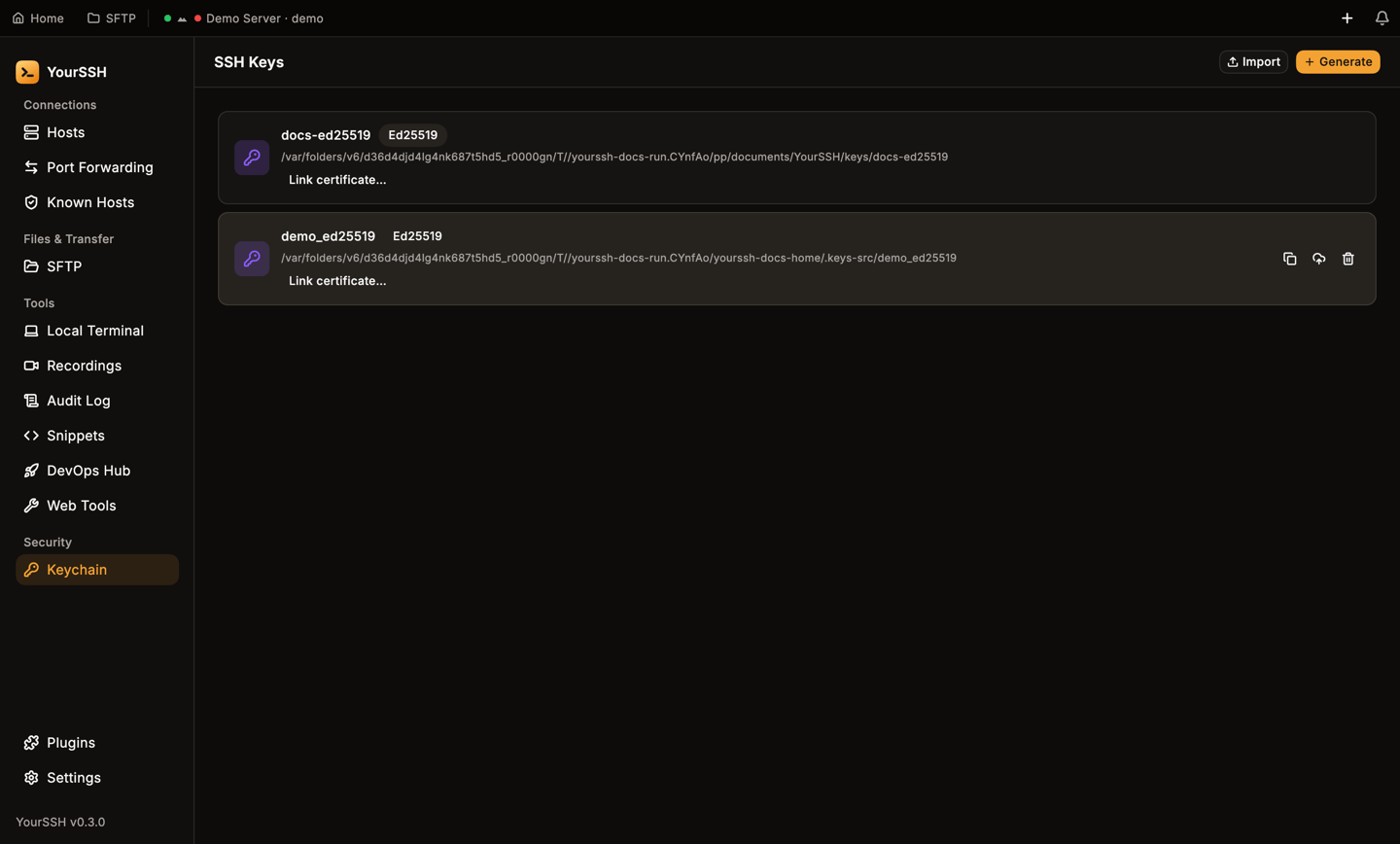
Hover a key to reveal Copy public key, Deploy to host and Remove key.
- Copy public key puts the public key on your clipboard.
- Deploy to host… opens a dialog that lists your saved hosts, with a search box. Pick a host and YourSSH connects to it and appends the public key to
~/.ssh/authorized_keys, creating~/.sshwith mode700if needed. Deploying is idempotent: if the key is already there, YourSSH says Key already deployed and changes nothing. Otherwise it confirms Public key added. - Remove key asks you to confirm with Remove “name” from keychain?. Removing takes the key out of YourSSH and deletes the passphrase YourSSH saved for it in the system credential store. The key file on disk is not deleted. A removed key from
~/.sshstays removed: the startup scan skips it. Import the same file again with Import key to bring it back.
Deploy key to host: choose a saved host from the list.
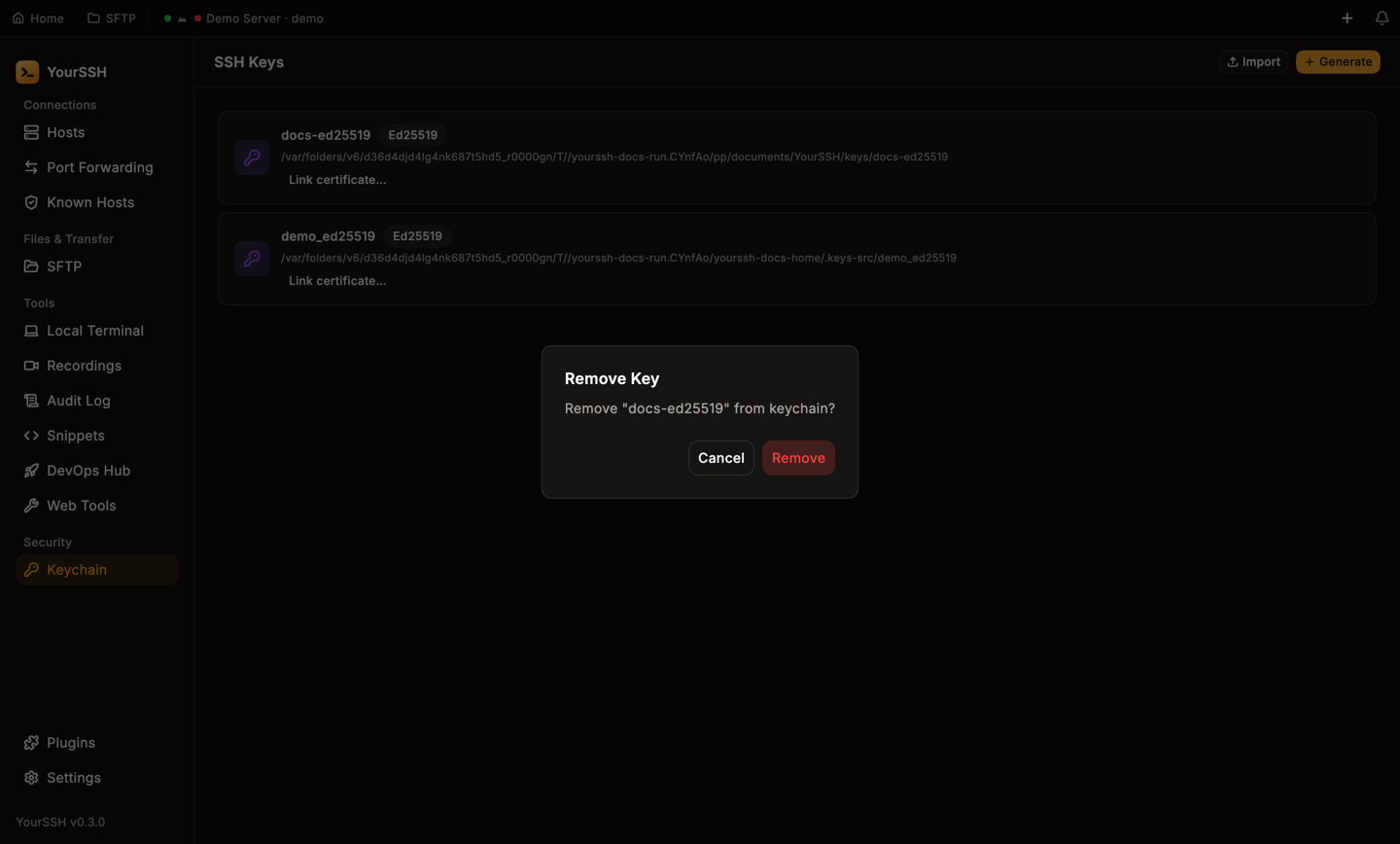
Removing a key asks for confirmation first.
How credentials are stored
YourSSH stores the secrets that unlock your hosts in your operating system’s system credential store, not in its own files:
This covers host passwords, sudo passwords and key passphrases. Everything else, such as the host list, settings and known hosts, is ordinary configuration.
YourSSH always tries the system credential store first. When a write succeeds, it also deletes any older plain-text copy of that secret. On every launch it moves any secret still sitting in plain-text preferences into the store: it writes the secret, reads it back to confirm, and only then removes the old copy, so a failed write never destroys your only copy.
On macOS, YourSSH uses the file-based login keychain. If you update to a build with a different signature, macOS may ask you again to allow access.
When the store refuses a write
If the system credential store rejects a secret, YourSSH falls back to saving it as readable text in its preferences file, so you don’t lose it. The fallback is never silent:- A notification appears in the bell at the top of the window.
- Settings → Security shows Plain text instead of Encrypted, with the number of affected credentials.
What stays on your device
- Private key files stay where they are on disk. Only their paths are stored.
- Passwords and passphrases stay in the system credential store.
- Passwords of hosts you sync are the one exception. They travel with your host list, encrypted on your device first. See Sync.