

YourSSH-x.x.x-Android.apk. There is no iOS version yet.
The Android app covers hosts, keys, snippets, an SSH terminal, file browsing and port forwarding. SSH only: RDP, VNC, plugins, session recording and the audit log are desktop features.
The preview APK is signed with a debug key. It installs and runs, but it can’t be upgraded in place from a differently signed build.
Lock the app
Settings → Security → Biometric unlock locks YourSSH behind your fingerprint, face or device credential. It is on by default. When it’s on, the app locks when you open it and whenever it comes back from the background. It also locks before the app switcher takes a snapshot, so nothing shows there. A locked app shows YourSSH is locked and an Unlock button.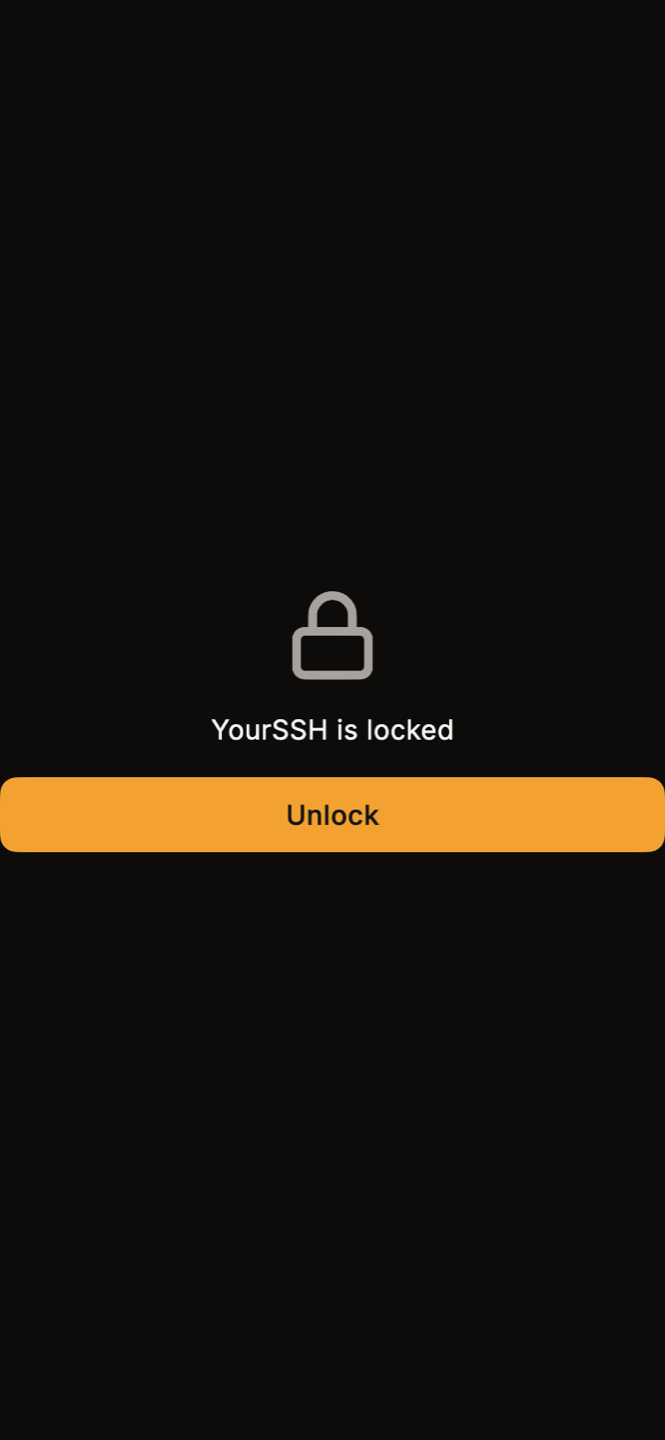
The lock screen.
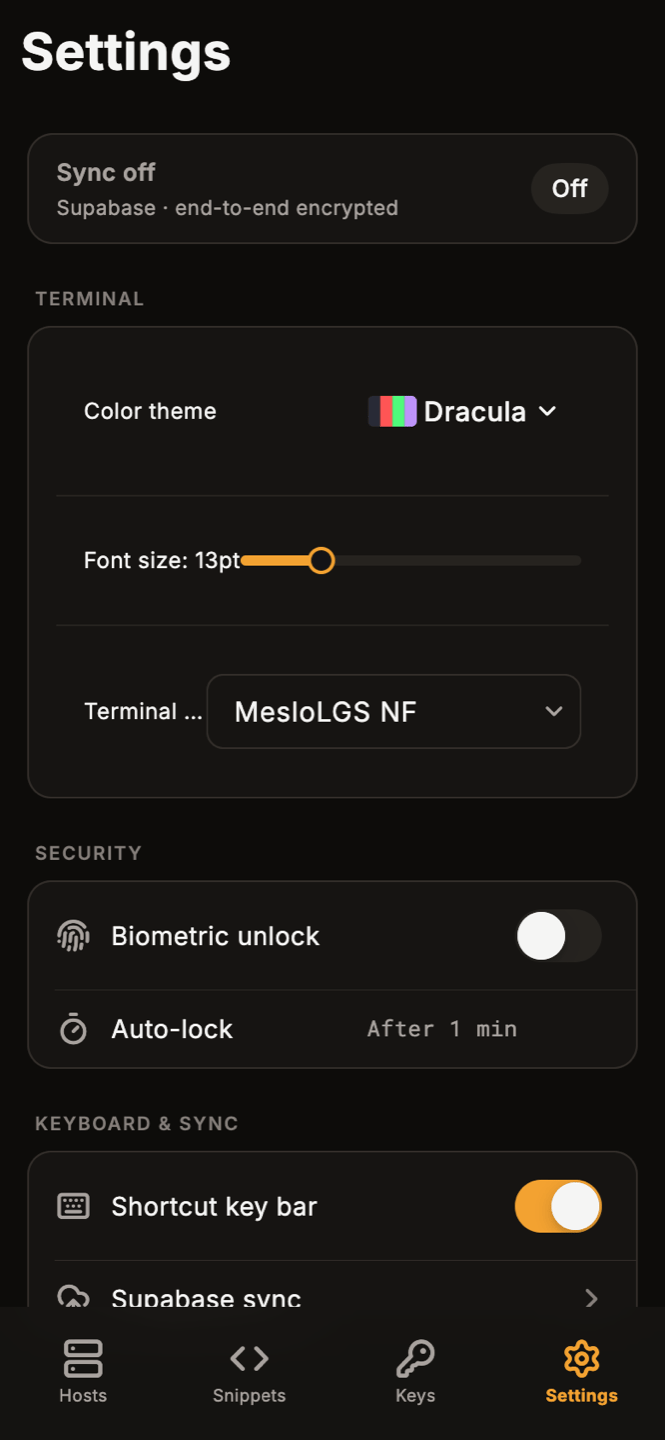
Security settings.
Hosts
The Hosts tab lists your saved hosts in sections named after each host’s first tag (hosts without tags go under Other), with their tags, a status dot and a reachability badge such as offline. Use the search box (Search hosts, tags, IPs…) or the tag chips under it to filter. Tap a host to connect. Long-press a host to open its action sheet, where you can Edit or Delete it. Deleting asks for confirmation and removes the saved host and its credentials.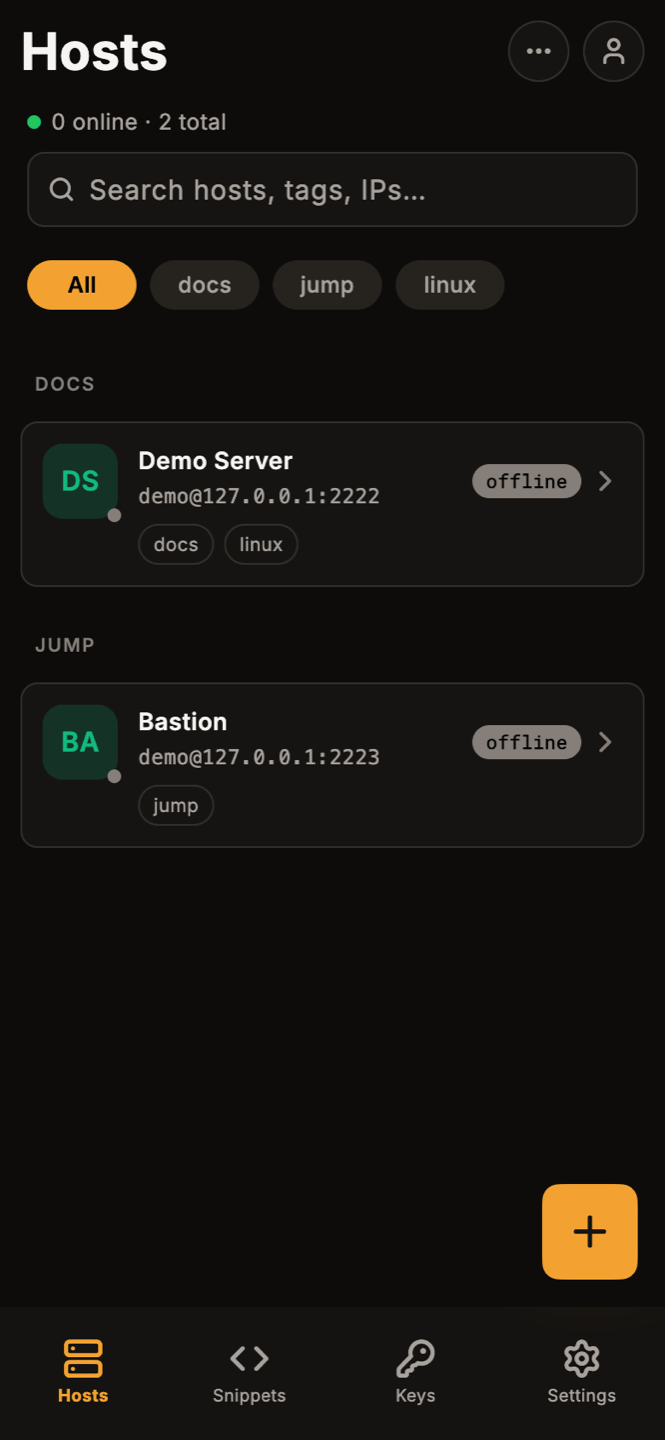
Hosts, grouped, with tag filters.
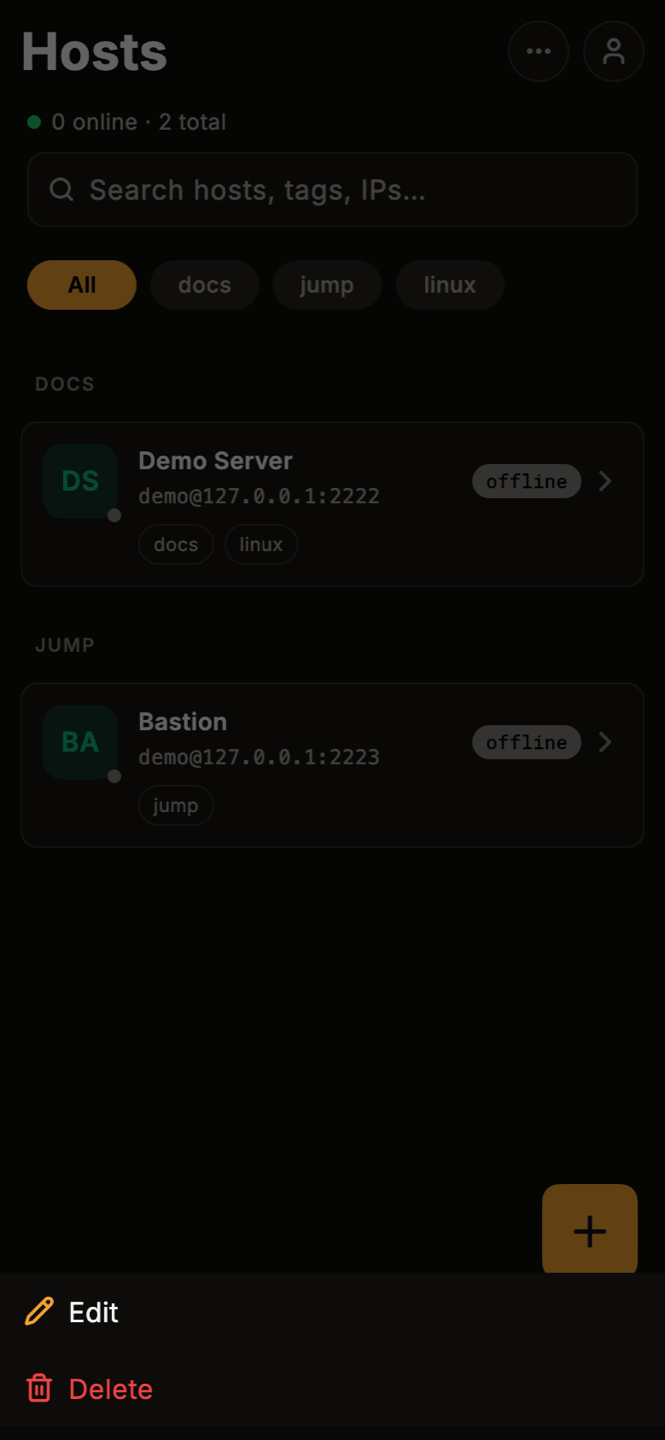
Long-press for Edit and Delete.
Add a host
Tap the + button on the Hosts tab to open New host.- Fill in Nickname, Hostname and Port (22 by default).
- Enter the Username.
- Choose a Method: Password, or SSH key and then pick one from your keys in Key.
- Optional, under Advanced: set a Group (for example
Production; it is stored as the host’s first tag) and a Run on connect command (for exampletmux attach). - Tap Save, or Save & connect to connect right away.
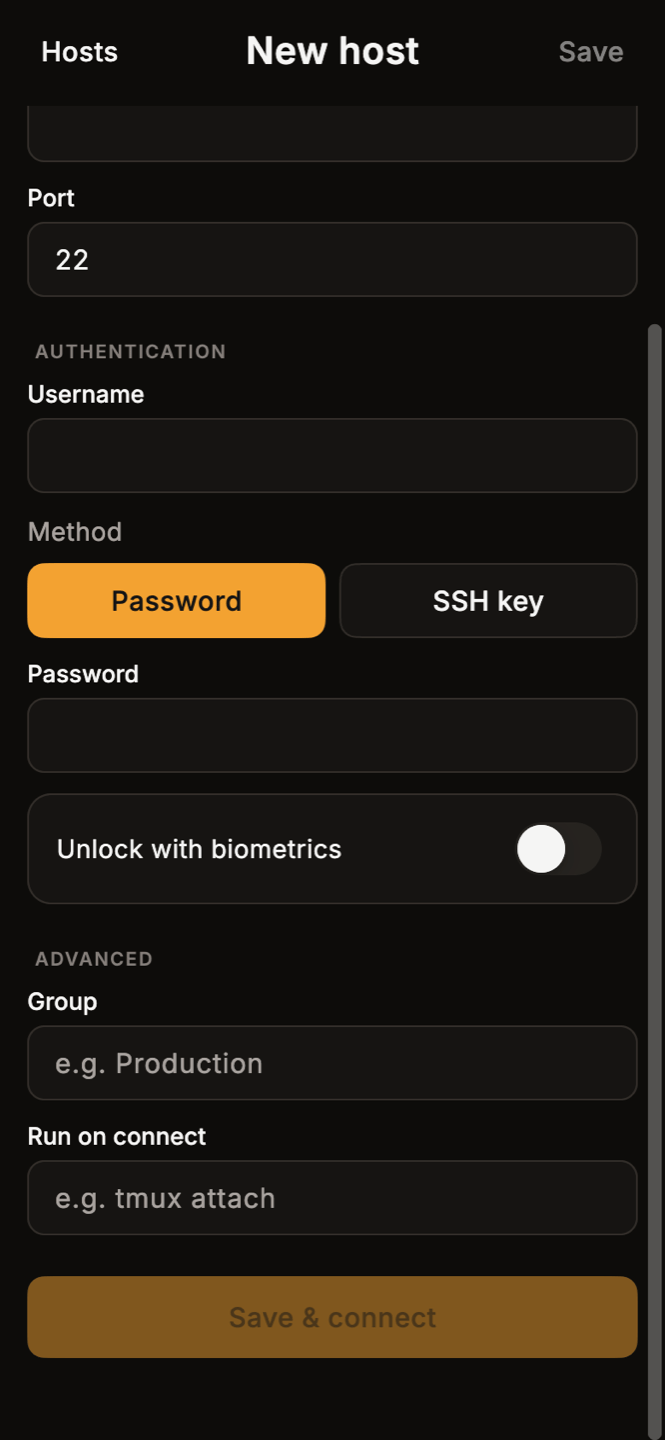
The authentication and advanced options.
Snippets
The Snippets tab lists your command snippets, filtered by tag. When a session is open, tap a snippet to run it in that session. With no session, the tab shows No active session. See Snippets for what snippets are.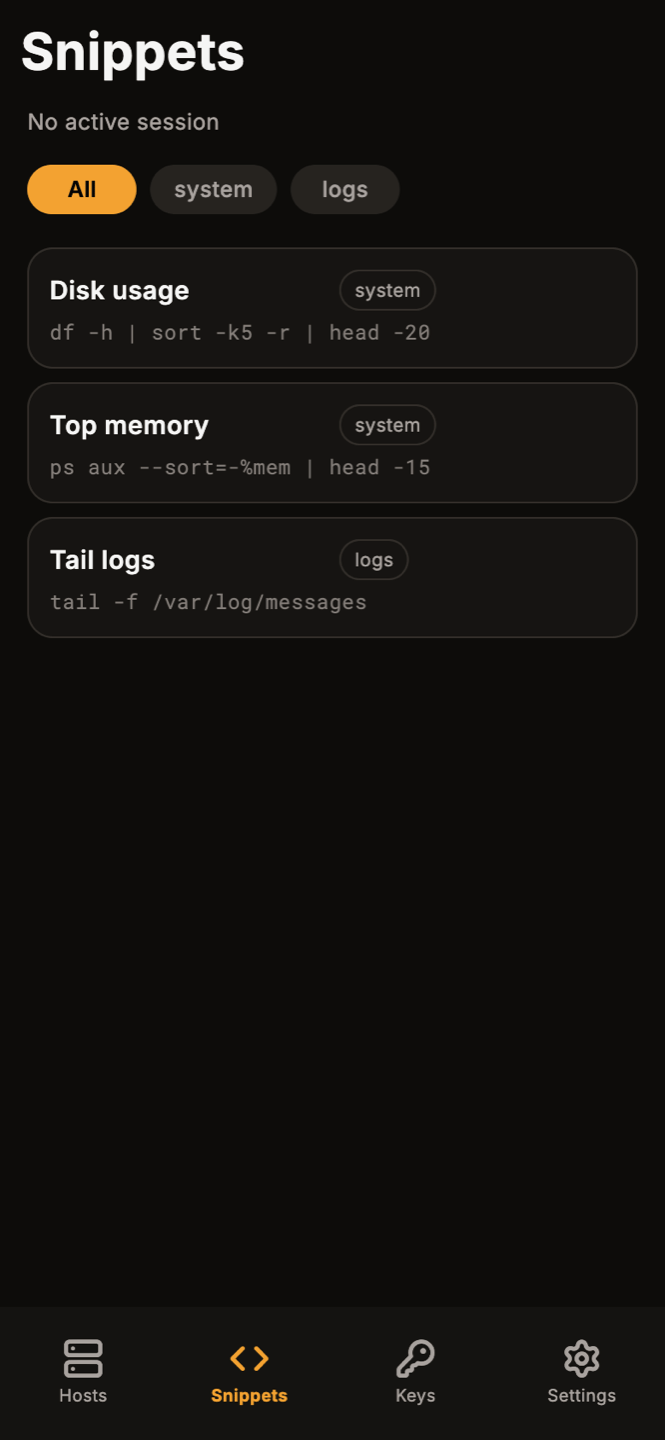
Snippets with tag filters.
Keys
The Keys tab lists your SSH keys with their algorithm, whether a host uses them, and a short SHA-256 fingerprint. Use the + button to generate a key and the import button to bring one in.- Generate: choose Ed25519 (fast, modern, recommended), RSA 4096 or ECDSA P-256, enter a Key name and an optional Passphrase (optional), then tap Generate.
- Import: pick a private key file, enter its passphrase if it has one, and tap Import.
- Remove: tap or long-press a key and choose Remove key. This takes the key out of the app’s key list. The key file on disk is kept, and YourSSH doesn’t delete a passphrase saved for it.
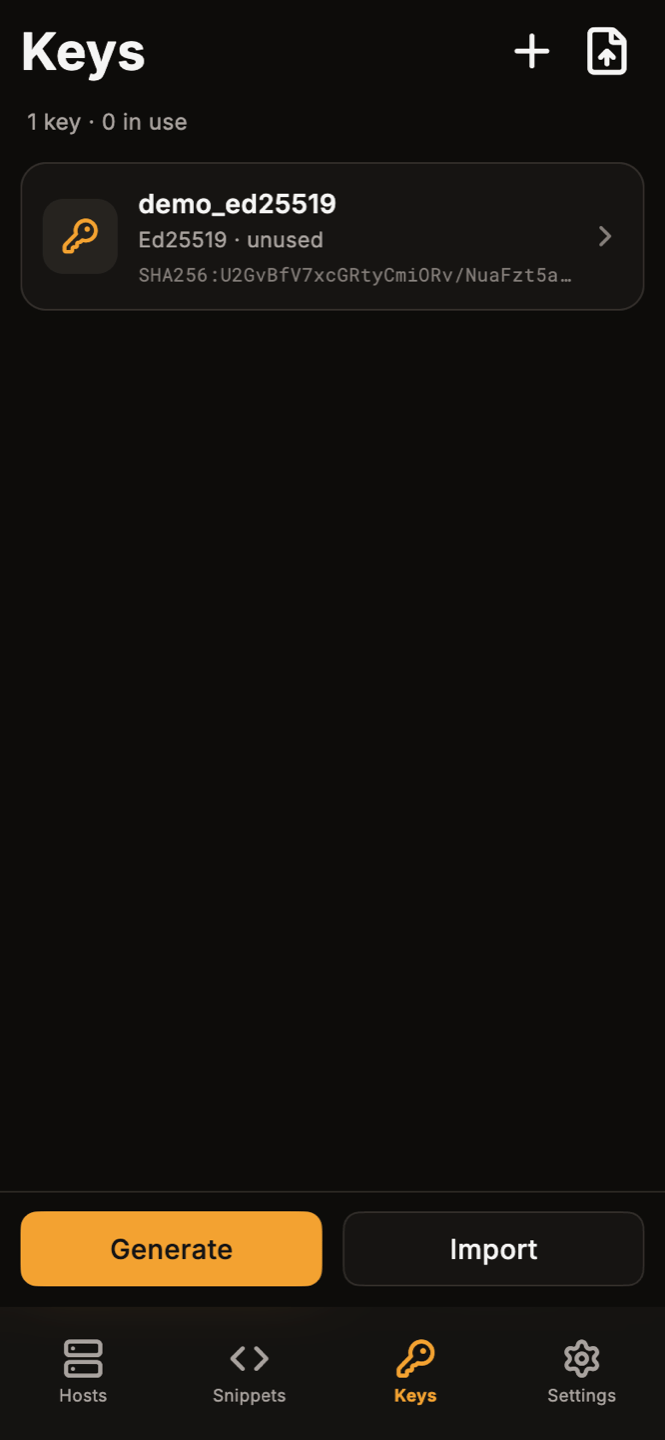
The Keys tab.
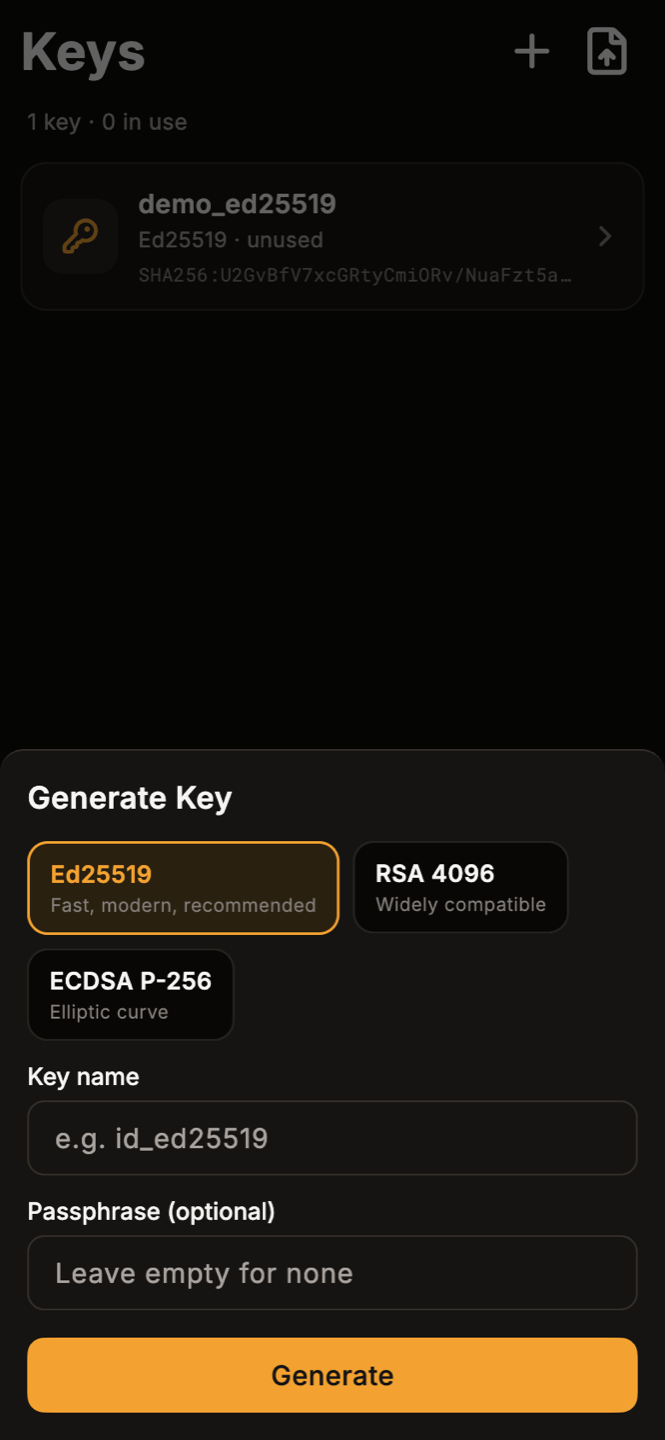
Generate a key.
Settings
The Settings tab has these groups:
The row at the top shows Sync active or Sync off, with
Supabase · end-to-end encrypted under it.
Sync and pair a device
Supabase sync and Pair new device both open the Pair device screen. There you can:- Show a QR code for another device to scan. It’s valid for 2 minutes, and Refresh restarts it.
- Tap Scan QR code to import hosts from a desktop that is showing Export via QR.
- Under Cloud sync, enter your Supabase project URL, anon key and 12-character sync code (Edit credentials reopens the form), tap Save, and then Pull from cloud to download your hosts.
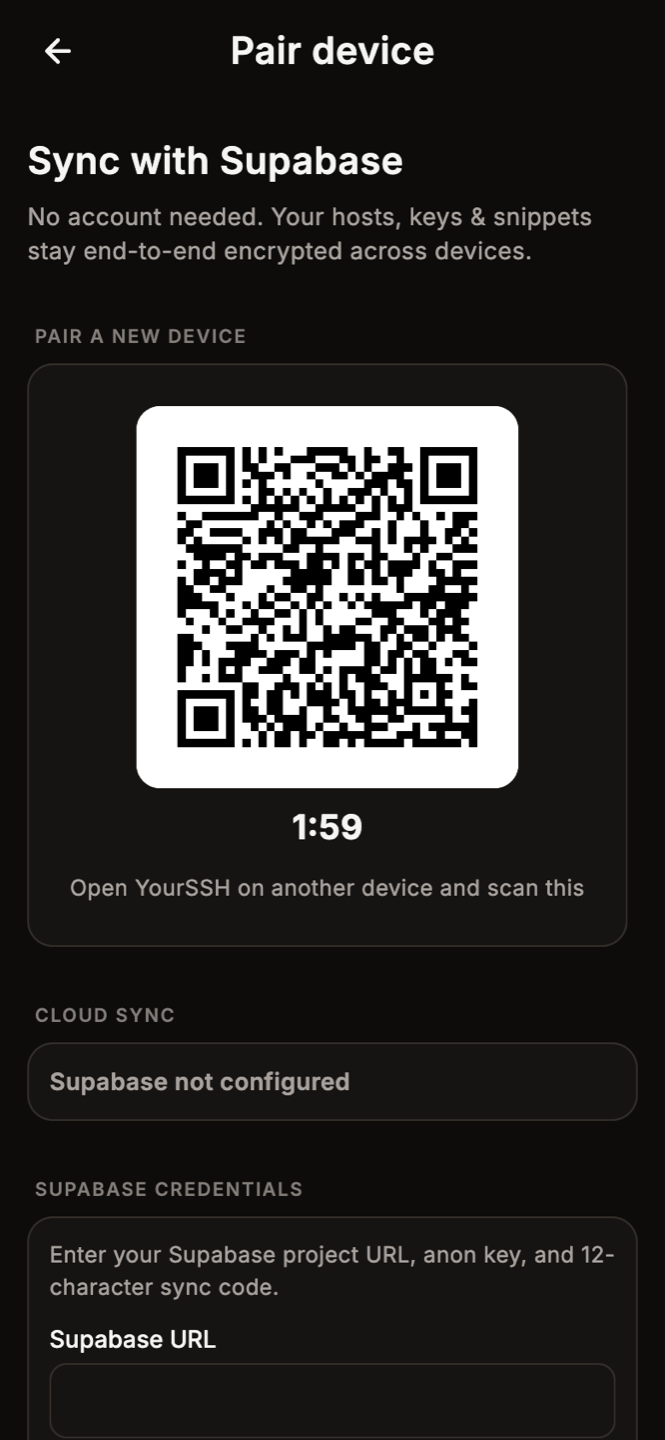
The Pair device screen. The QR code uses a documentation example address.
Only your hosts and their saved passwords are synced or transferred, as the screen says. SSH keys, snippets, settings and AI keys stay on the device where you created them. Import the keys you need on the phone from the Keys tab.
Connect and use the terminal
Tap a host to connect. A connecting screen shows progress, then the terminal opens. Each session is a tab at the top of the terminal, with + to open another session and x to close one. The terminal supports pinch-to-zoom, and a long-press lets you drag the cursor.Shortcut key bar
A row of keys above the on-screen keyboard gives you keys a phone keyboard lacks:- Esc, Tab, Ctrl and Alt. Ctrl and Alt are sticky: tap once, then press a letter.
- ^C and ^D send those control characters directly.
- Arrow keys.
/,-,|,~,:and$.
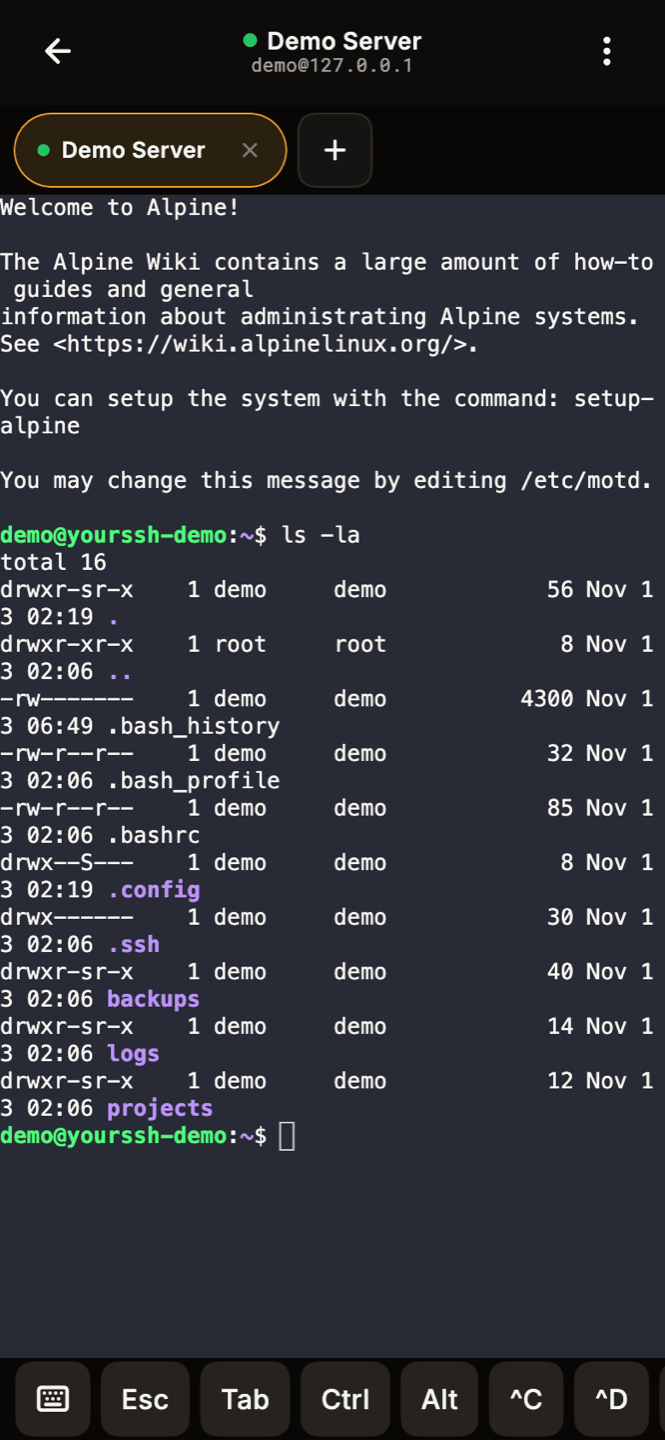
A terminal session with the shortcut key bar.
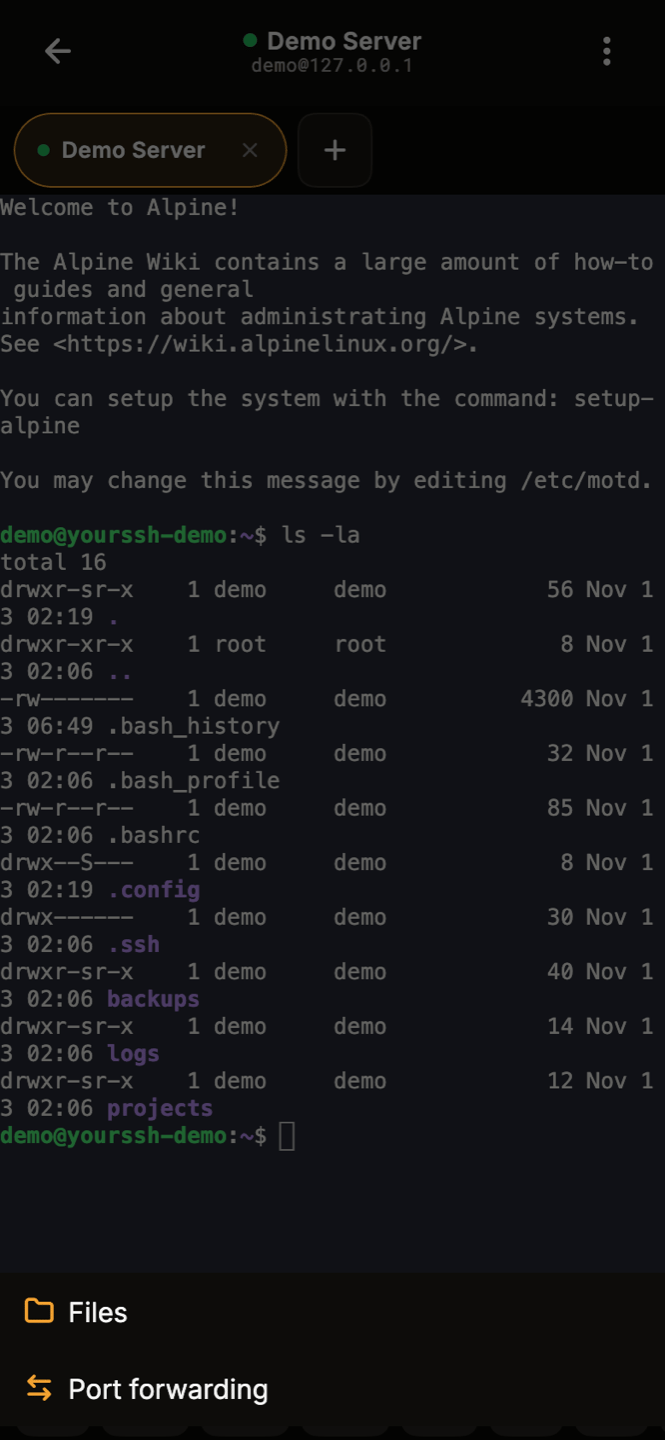
The terminal menu.
Terminal menu
Tap the three-dot button at the top right of the terminal for Files and Port forwarding.Files (SFTP)
Files opens a single-panel file browser for the connected host. Tap a folder to open it and the breadcrumb at the top to go back up. Tap the download icon beside a file to download it. Use the upload button at the top to send a file from your phone, and the three-dot menu for more actions such as Refresh. See SFTP for the desktop file manager.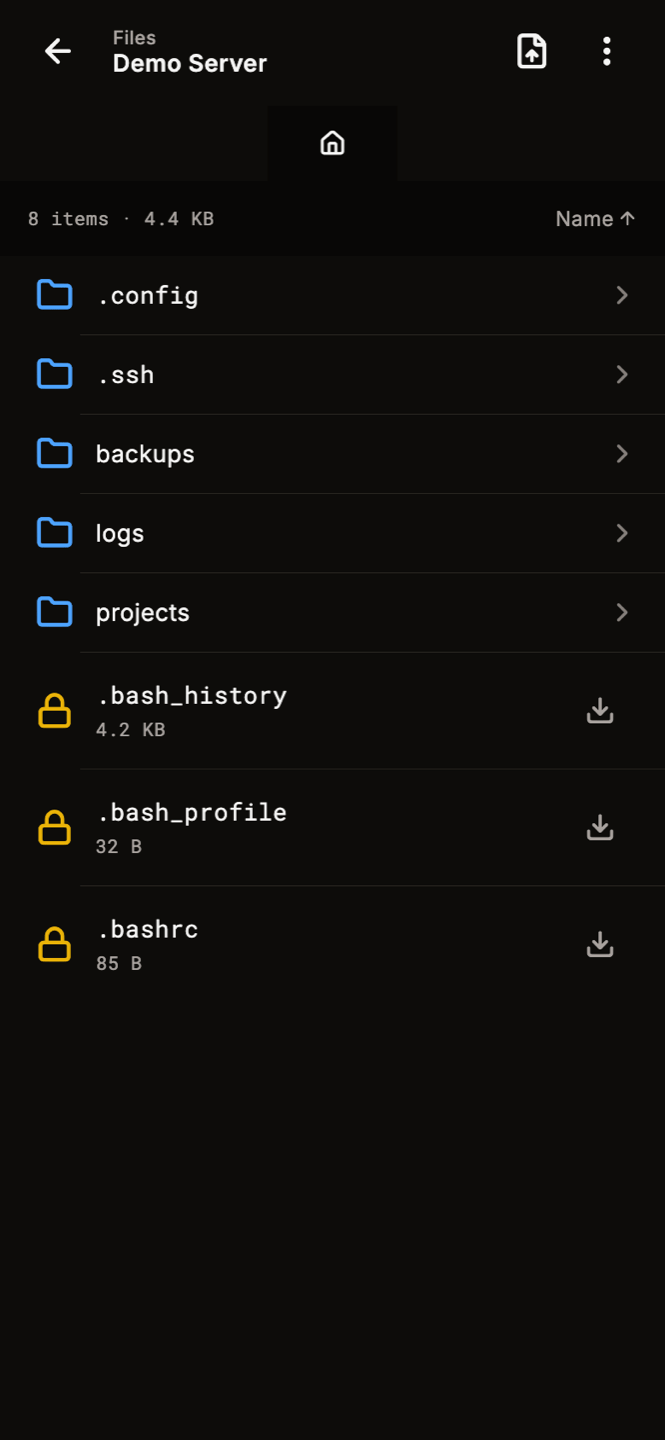
Browsing a host's files.
Port forwarding
Port forwarding lists the rules for the host you’re connected to. Tap Add forwarding rule at the bottom of the list to open the Add forwarding rule sheet. Each rule in the list can then be started and stopped. In the sheet, choose a type:- Local forwards a port on your phone to a host and port reachable from the server. Enter a Local port, a Remote host and a Remote port.
- Remote exposes a port on the server that points back to your device.
- Dynamic opens a SOCKS proxy on your phone.
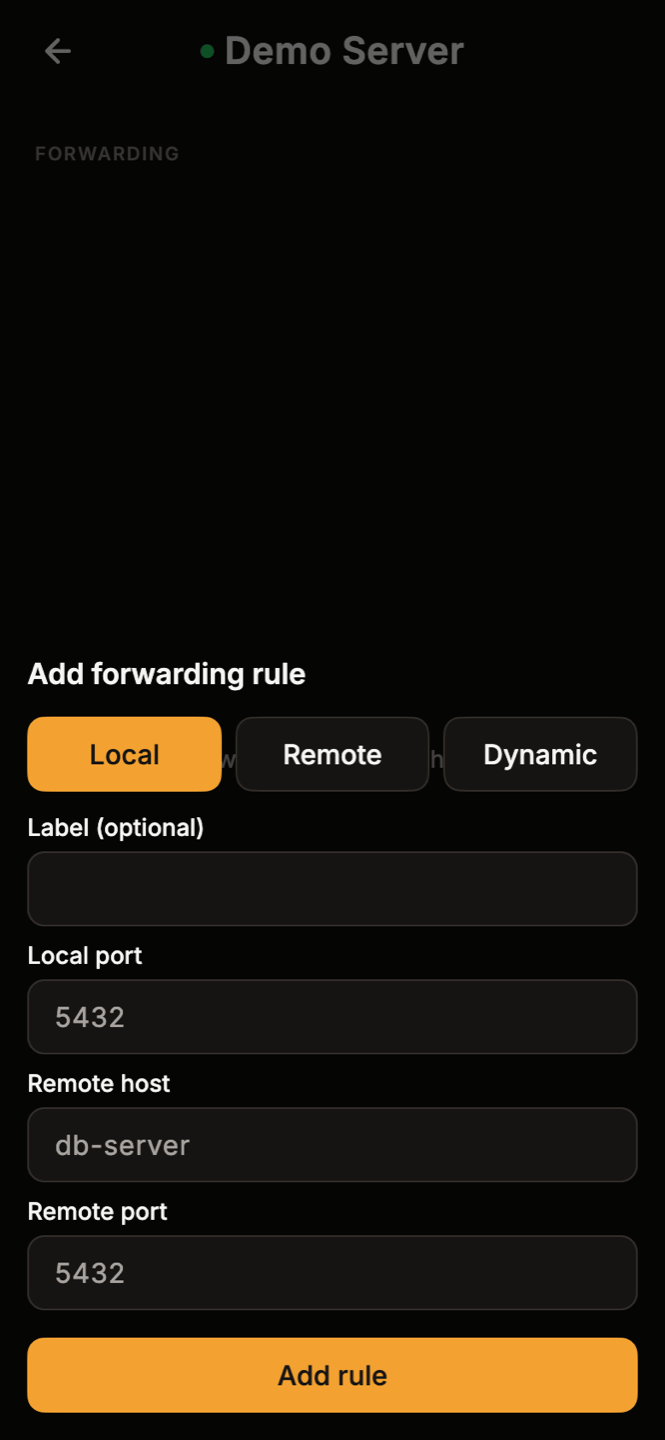
Add a forwarding rule.