

Trust on first use
When you connect to a host or port that YourSSH has never seen, it saves the server’s host key without asking, then continues. This is trust on first use. The first connection is the only moment an attacker could slip in unnoticed, so connect to new servers from a network you trust. The pin is stored per host, port and key type. The same check applies to every hop of a connection chain, to Test, to SFTP and to port forwarding.When a key changes
If a pinned server presents a different key, the connection is blocked until you decide.Host key type changed
A server can offer several key types, such asssh-ed25519 and ssh-rsa. If you pinned one type and the server now presents another, YourSSH shows Host key type changed with the old and new SHA-256 fingerprints. A server or attacker that only changes the algorithm cannot get past the pin.
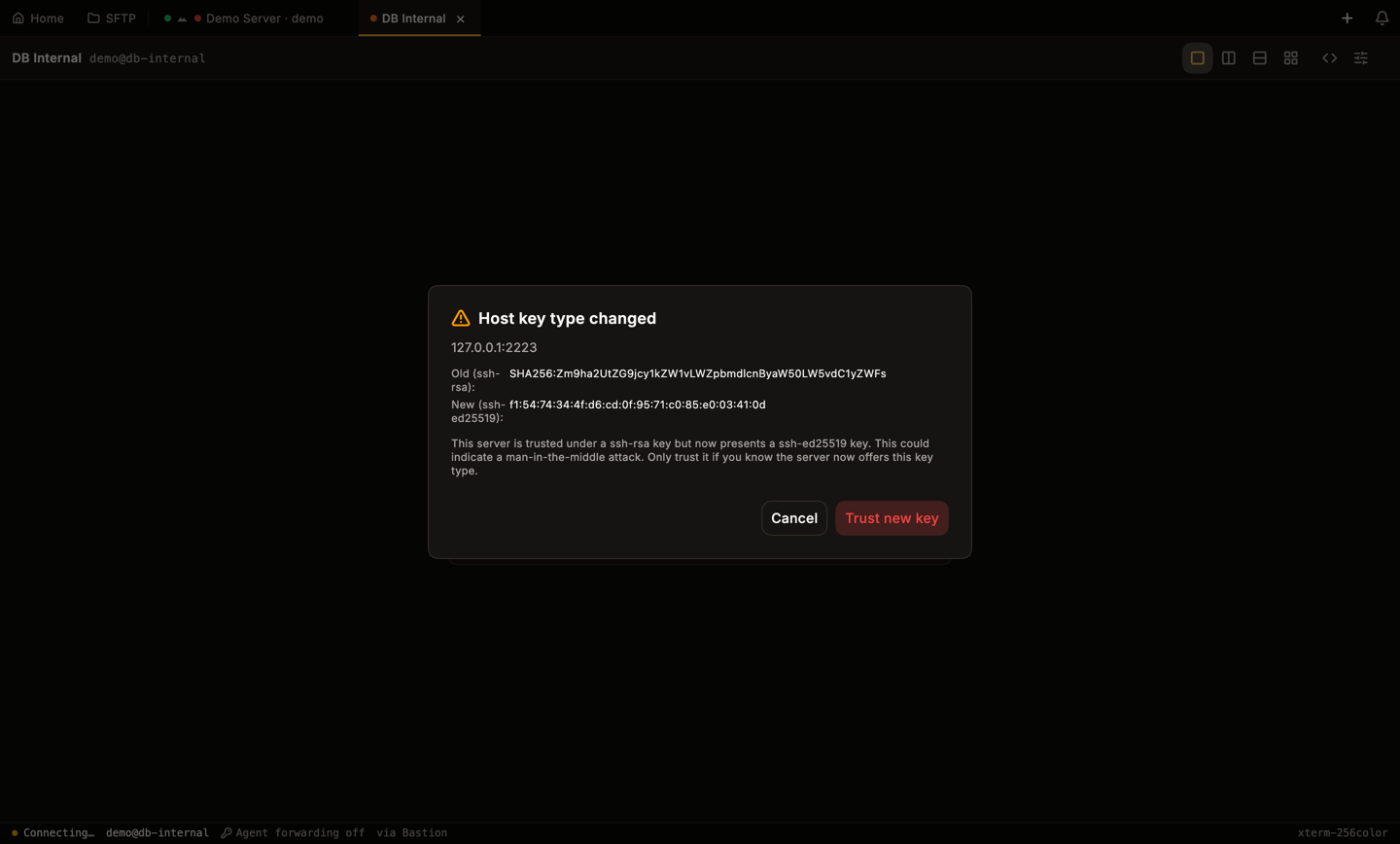
The key type changed. Cancel is selected by default.
Host key changed
If the key type is the same but the key itself is different, YourSSH shows Host key changed with the old and new fingerprints. In both cases:- Cancel aborts the connection and keeps the old pin. It has the default focus.
- Trust new key replaces the pin and continues.
Known hosts
Open Known Hosts in the sidebar to see every pinned key. Each row shows the host and port, the key type and the fingerprint.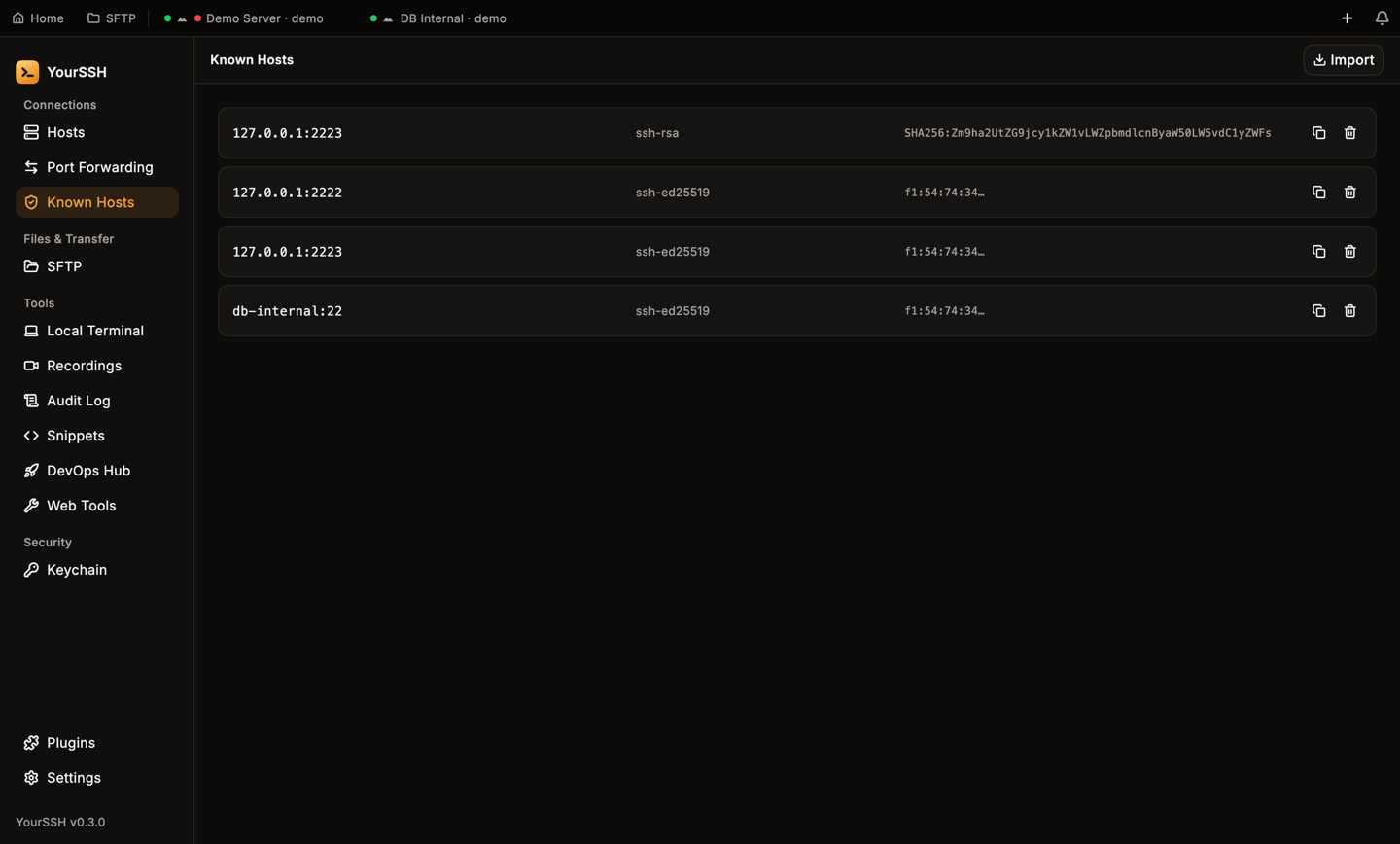
The Known Hosts screen.
- Copy fingerprint: copies the fingerprint of the row (the copy icon).
- Remove: deletes the pin (the trash icon). YourSSH asks Remove host key? first, because it will then trust whatever key that host presents on the next connection. Cancel is selected by default.
- Import: reads
~/.ssh/known_hostsand adds entries you don’t have yet. YourSSH reports Imported N entries, or No new entries found. If the file doesn’t exist, it says so.
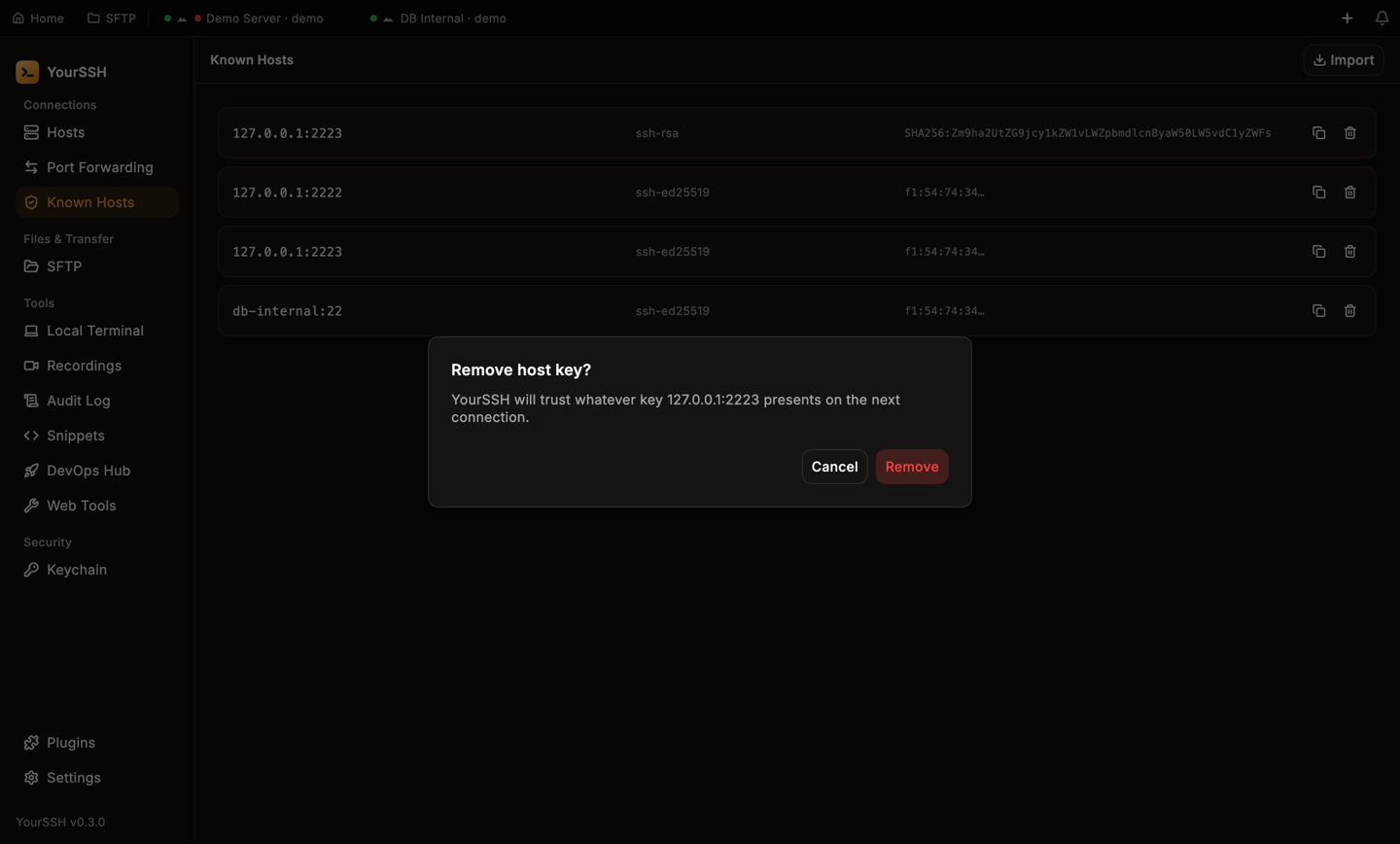
Removing a pin asks for confirmation.