

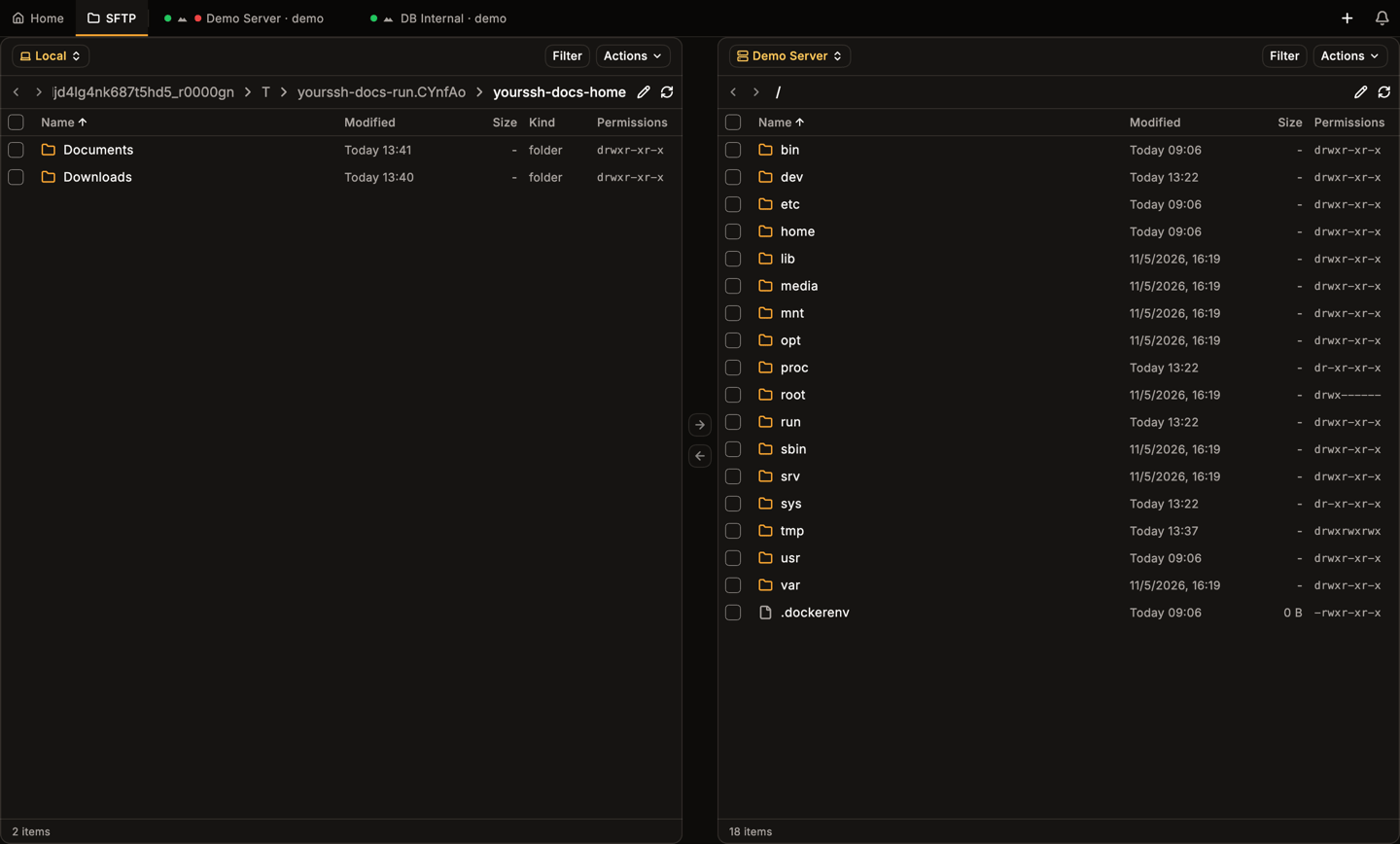
Dual-panel SFTP: local files on the left, a remote host on the right.
Open SFTP
Click the SFTP tab at the top, or SFTP in the sidebar. You can also choose SFTP from a host card menu. Each panel has a source chip at the top left. It starts as Local on the left. Click it to switch a panel to Local or to any saved host. A panel with no host shows Connect to host and a Select host button.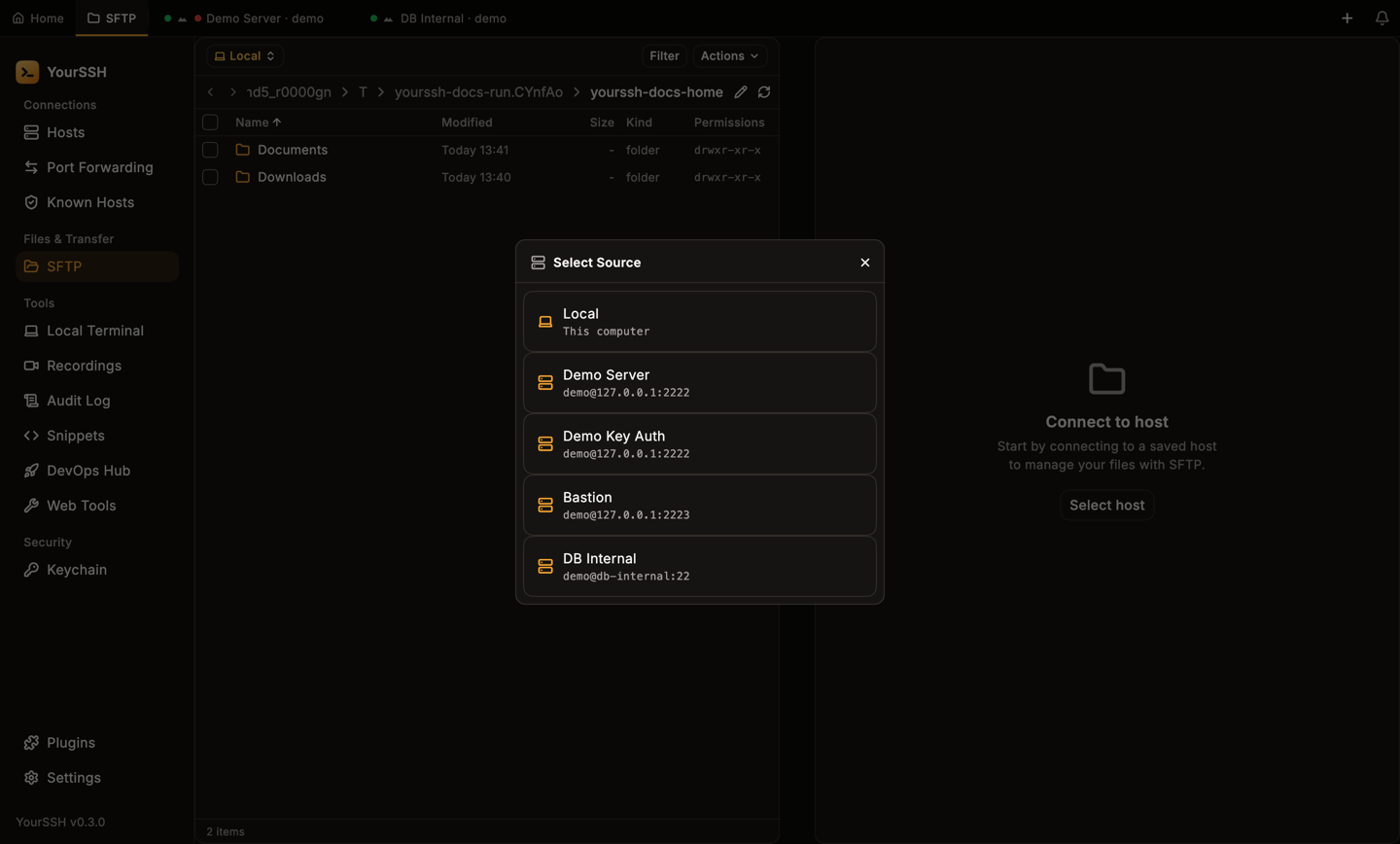
Choosing a host for the remote panel.
Navigate
- Click a row to select it. Double-click it, or press
Enter, to open a folder or a file. - Click a segment of the breadcrumb to jump to that folder.
- Click the pencil icon next to the breadcrumb to type or paste a path, then press
Enter. PressEscto cancel. - Use the back and forward arrows to move through your visited folders, and the refresh icon to reload the listing.
- Filter narrows the current listing as you type.
- Click a column header (Name, Modified, Size, Permissions; the local panel also has Kind) to sort.
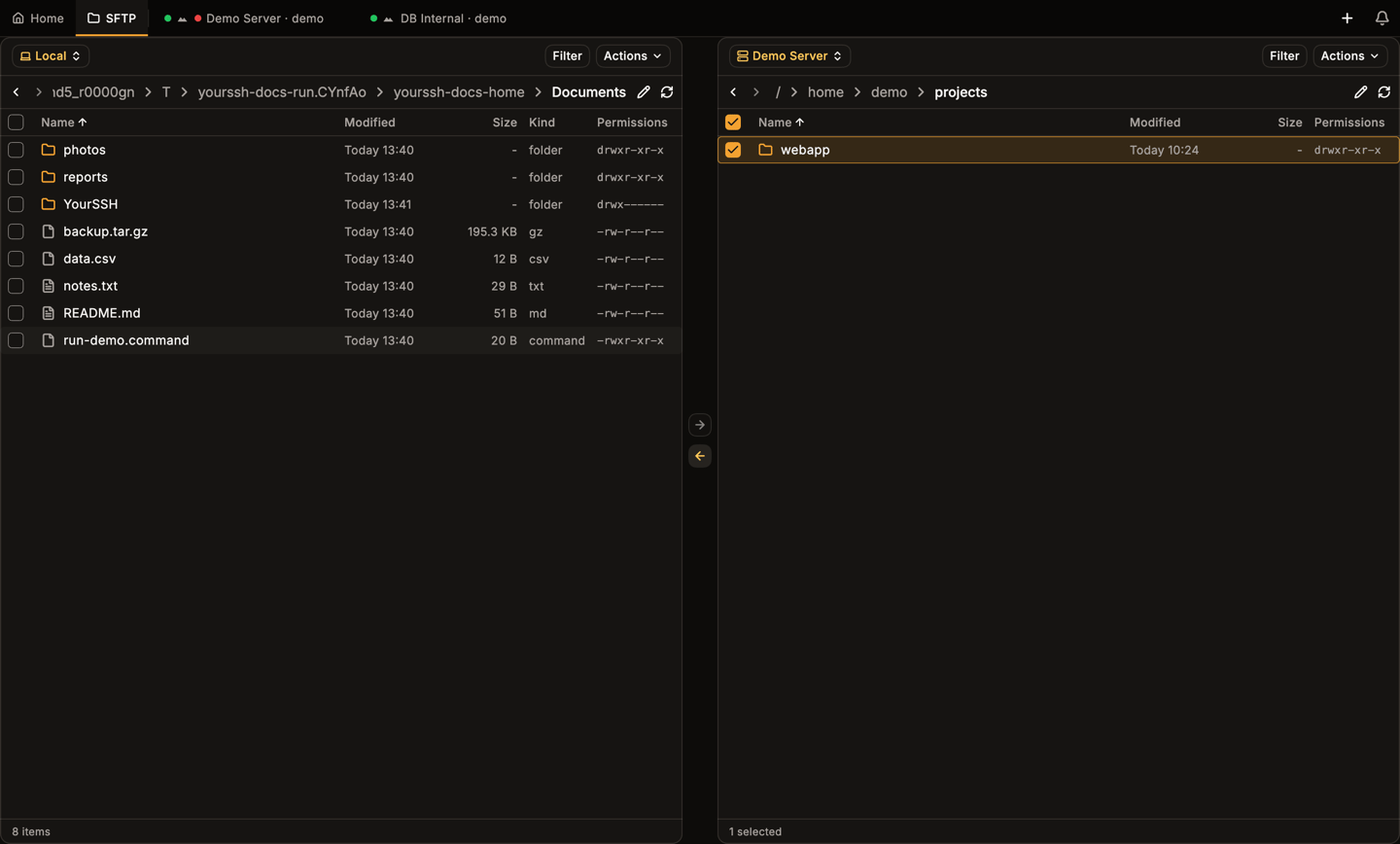
A single click selects a row and does not open it.
Select files
Use the checkbox on each row, or click rows withCmd / Ctrl to add to the selection, or Shift to select a range. The header checkbox selects every entry that matches the current filter. The footer shows the item count or 1 selected.
Transfer files
Select entries in one panel, then:
Copy to target directory is disabled, with a reason in the menu, when it can’t run: no target panel, folders between two remote hosts, or both panels showing the same folder. Uploading or downloading a single file replaces a file with the same name. Uploading a folder skips remote files that already exist, and copying between two local folders skips existing files and reports how many.
Transfer queue
A panel docked at the bottom shows progress per file. Transfers run in the background, so the panels stay usable, and starting another transfer queues it on the same panel.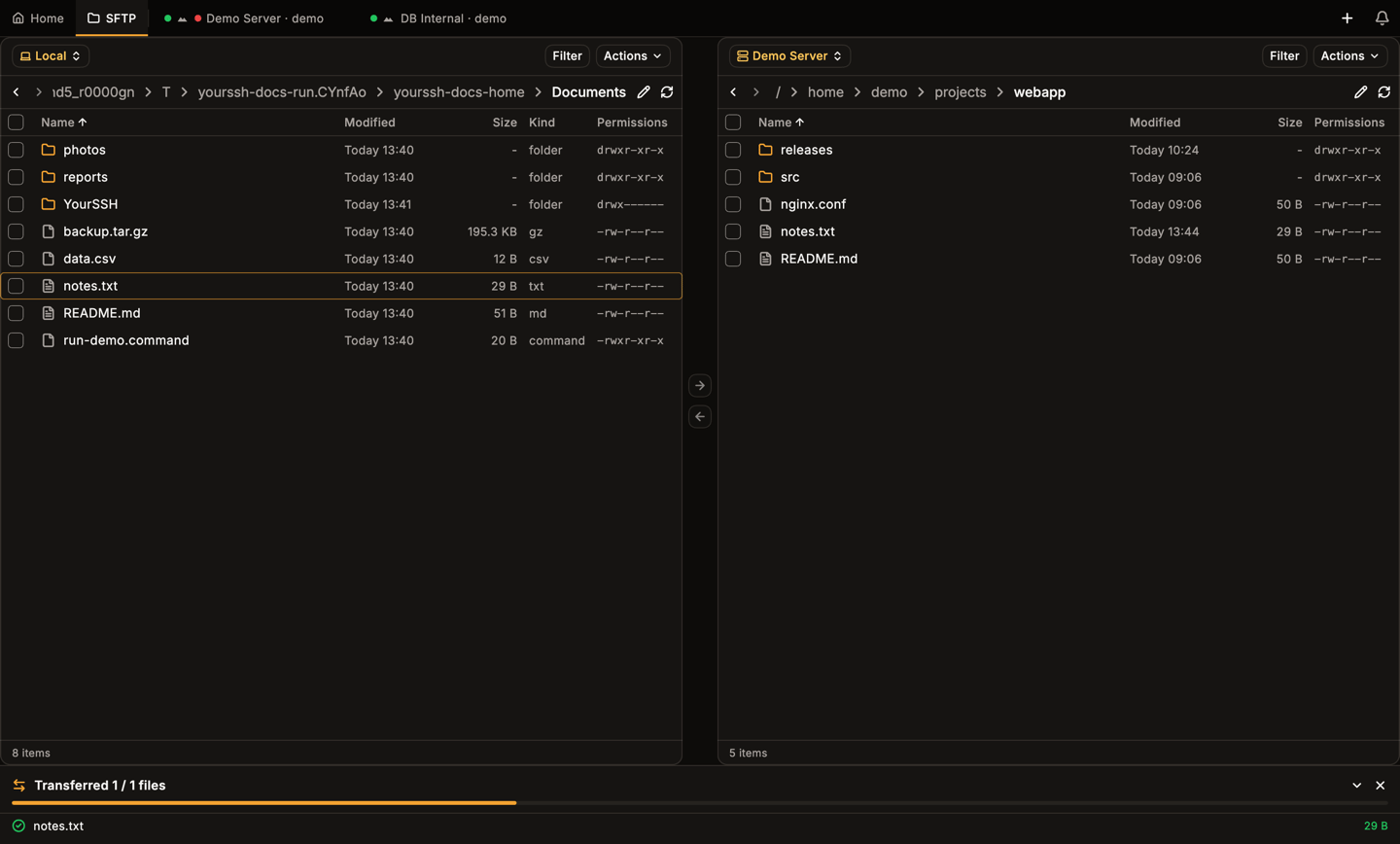
The transfer queue at the bottom after an upload starts.
- Click Minimize to shrink the panel to a slim strip, and Expand to bring it back.
- A successful batch closes itself after a few seconds. A batch with errors stays until you close it.
- Click Cancel to stop everything still pending. After a batch finishes the button becomes Close.
File menu
Right-click an entry for its menu. The same menu serves the local and the remote panel.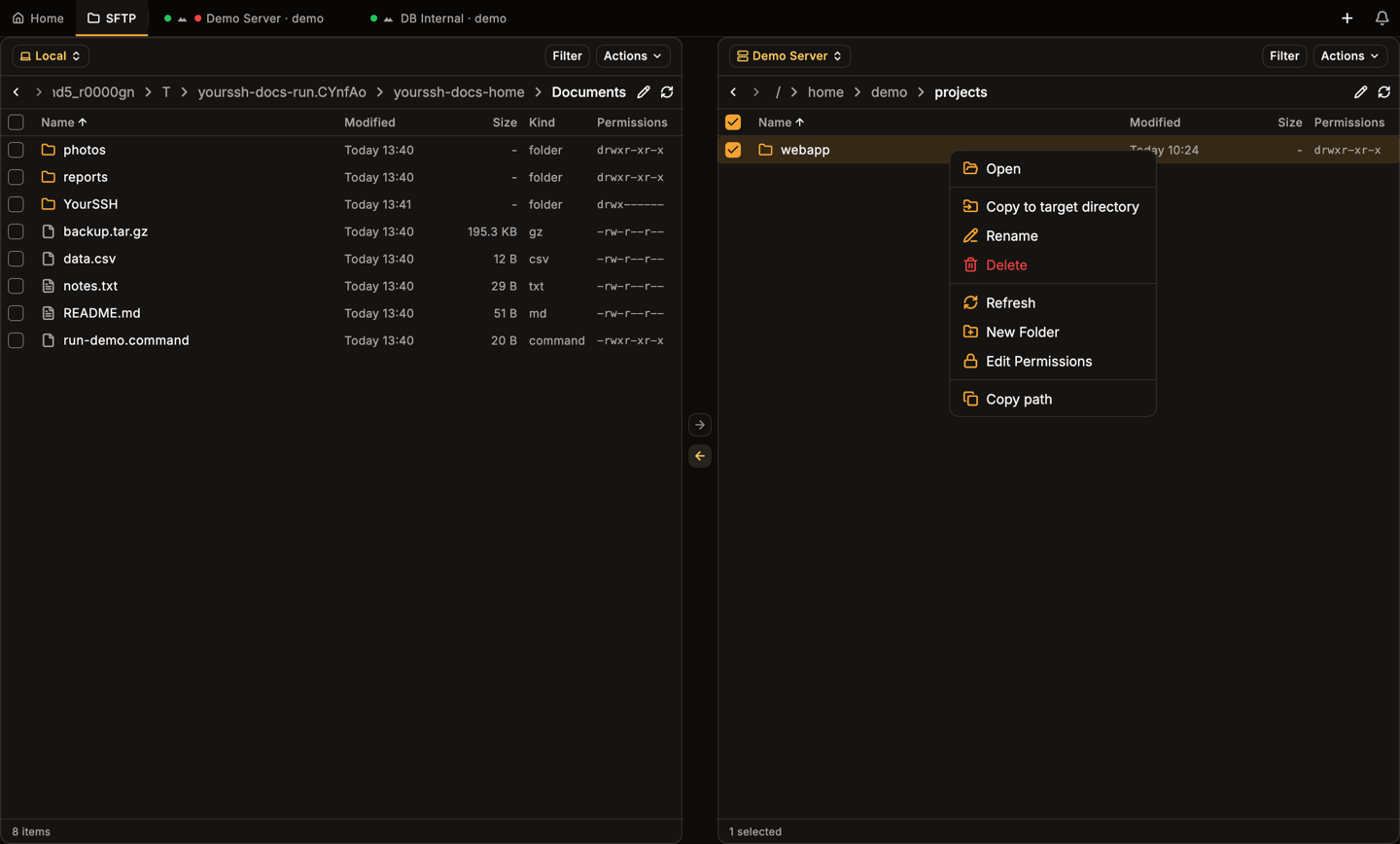
The context menu on a remote folder.
View, Edit and Open with appear for files. The Actions menu in each panel header also offers New Folder, Rename and Delete, plus New File on a remote panel.
Rename, new folder and delete
Rename, New Folder and New File open a small dialog where you type a name and confirm with Rename or Create. Delete asks you to confirm and names the entries:Delete "…"? This cannot be undone.
If an operation fails, YourSSH shows a readable message instead of a raw error code. For example, creating a folder whose name exists shows Create folder failed: "releases" already exists. Other messages cover missing entries ("x" no longer exists.), Permission denied for "x"., and a lost connection.
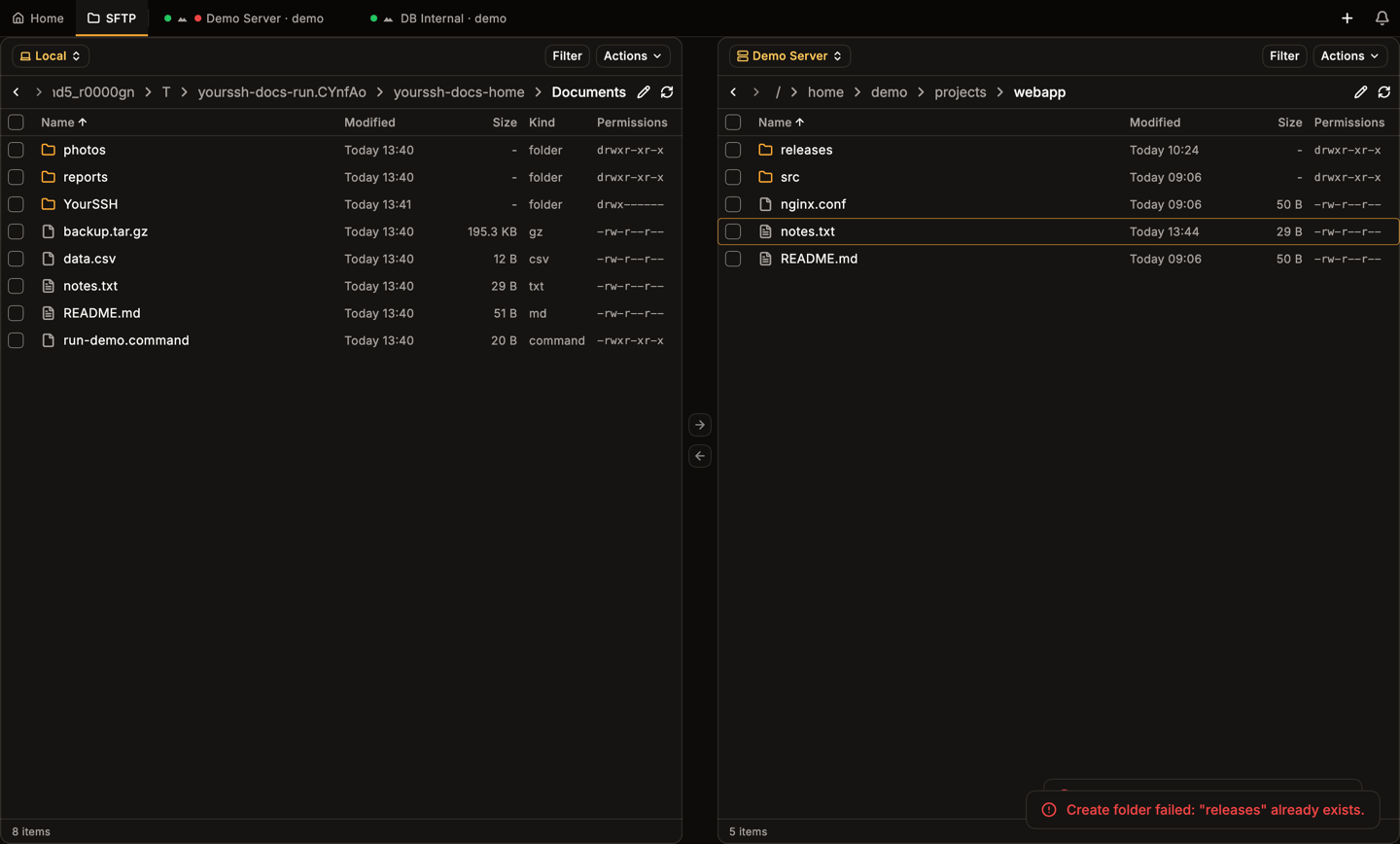
Creating a folder that already exists shows a clear error.
Edit permissions
Edit Permissions opens a dialog titled Permissions — name. It has a grid of Read, Write and Execute checkboxes for Owner, Group and Others, kept in sync with an Octal field such as644, 0755 or 4755. Special bits survive when you only change checkboxes.
- The octal field accepts three or four octal digits. Apply stays disabled while the value is incomplete or invalid.
- For folders, Apply recursively runs
chmod -R. The walk never follows symbolic links, so a link can’t change files outside the tree. - If the server doesn’t report the current permissions and a stat also fails, the dialog warns Current permissions unknown and keeps Apply disabled until you set a mode.
- On the local panel, permissions use the system
chmodand aren’t available on Windows.
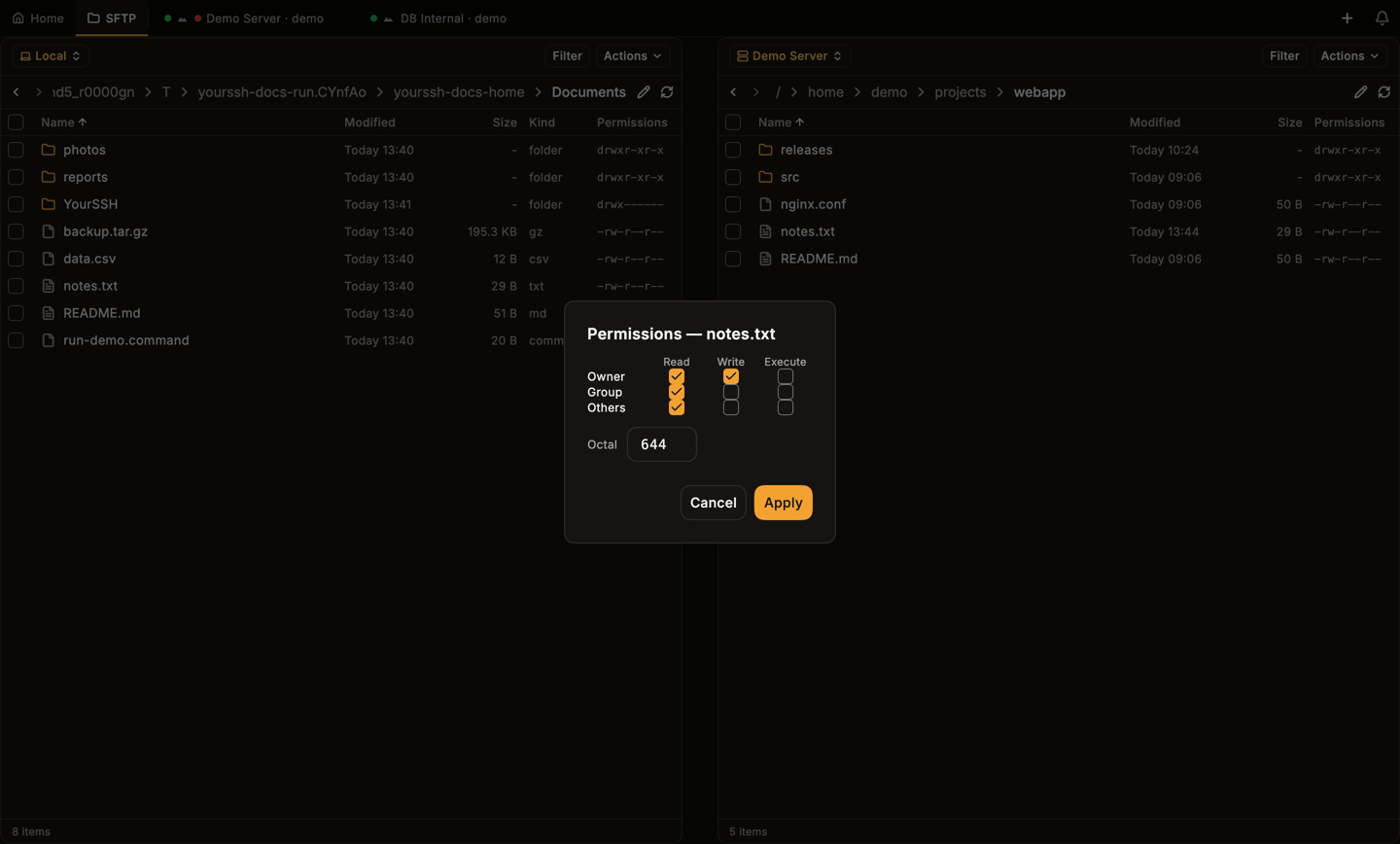
The permissions dialog for a remote file.
Edit files
Double-clicking a text file, or choosing Edit, opens the built-in editor. On macOS it is the Monaco code editor with syntax highlighting for the file type. On Windows and Linux it is a plain text editor. Use the back button to return, and save to upload your changes. View opens the same editor read-only. The editor refuses files it can’t edit safely: files with a binary extension, files larger than 5 MB, and files with a null byte near the start. YourSSH then offers Cannot edit in-app with an Open externally button.Open with an external app
Open with and Open externally download the file to a temporary folder and open it in the app you choose. YourSSH watches that local copy and uploads it back each time you save. A message confirmsOpened … — watching for changes.
For safety, YourSSH refuses to open executables from a server externally (for example .exe, .bat, .lnk, .command and .desktop files) and points you to download them instead. In the local panel, opening such a file asks first.
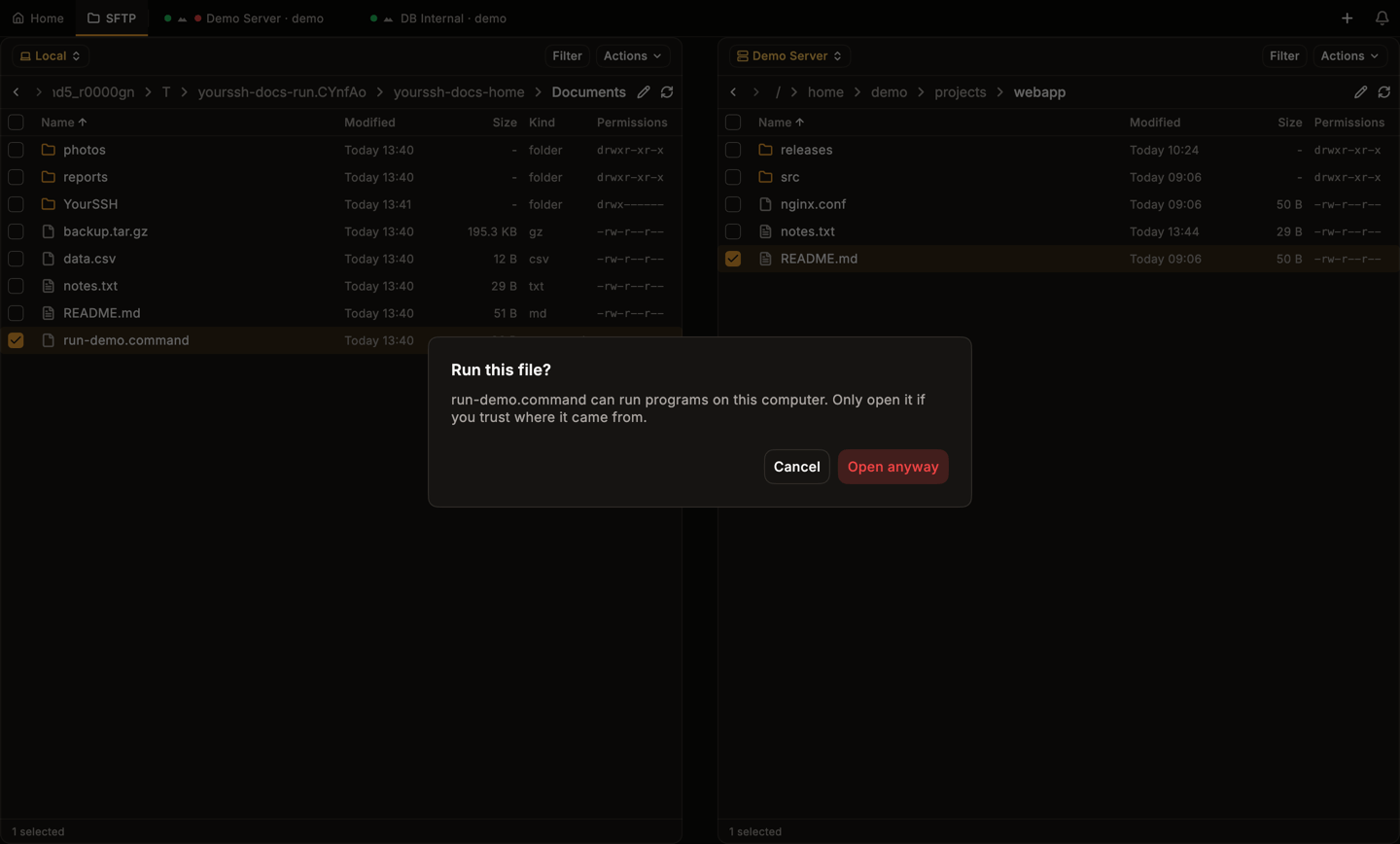
Opening an executable from the local panel asks for confirmation.
Sudo mode (root transfers)
Each host has an SFTP MODE setting in the host editor: Default, Sudo (root) or Custom command.- Sudo (root) starts the remote SFTP server through
sudo, so browsing, uploads, downloads, rename and delete all run as root. YourSSH finds the server’s path across common distributions. - With a
NOPASSWDsudoers entry it works silently. Otherwise YourSSH asks for the Sudo password and can remember it with Remember in system keychain. - Custom command runs a command you provide, for example
sudo /usr/lib/openssh/sftp-server. The field is required in this mode. - A panel running elevated shows a root badge with the tooltip SFTP runs elevated on this host.
Small windows
Down to the 800 × 600 minimum window size, both panels stay usable and the layout adapts.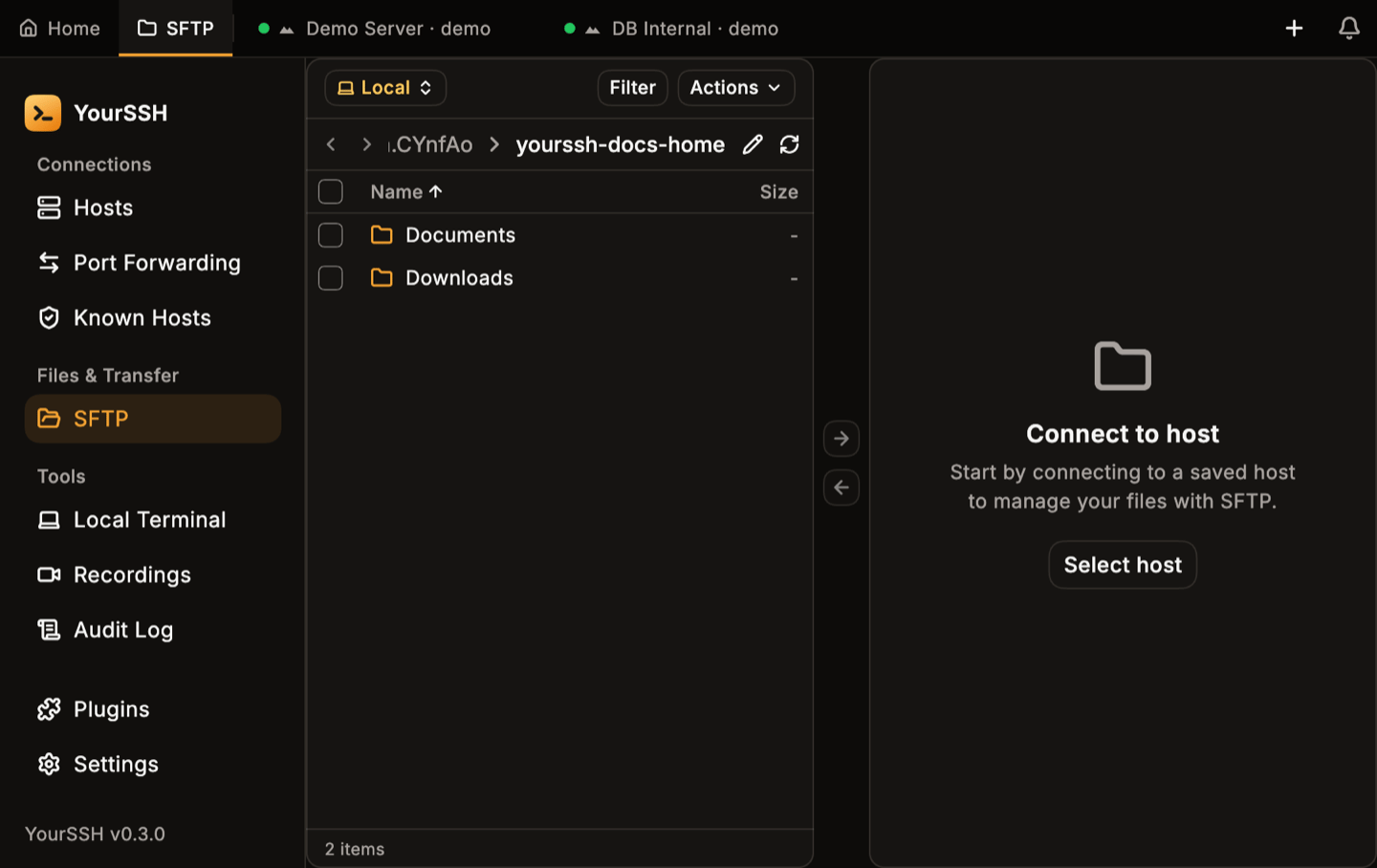
SFTP in a 900 × 600 window.
Related pages
- Port forwarding to reach services behind a host.
- Hosts for credentials and connection chains used by SFTP.
- Bulk actions to push files to many hosts at once.