

xterm-256color terminal for every SSH session and local shell, and adds tabs, split panes, search, a command input bar and shell integration on top.
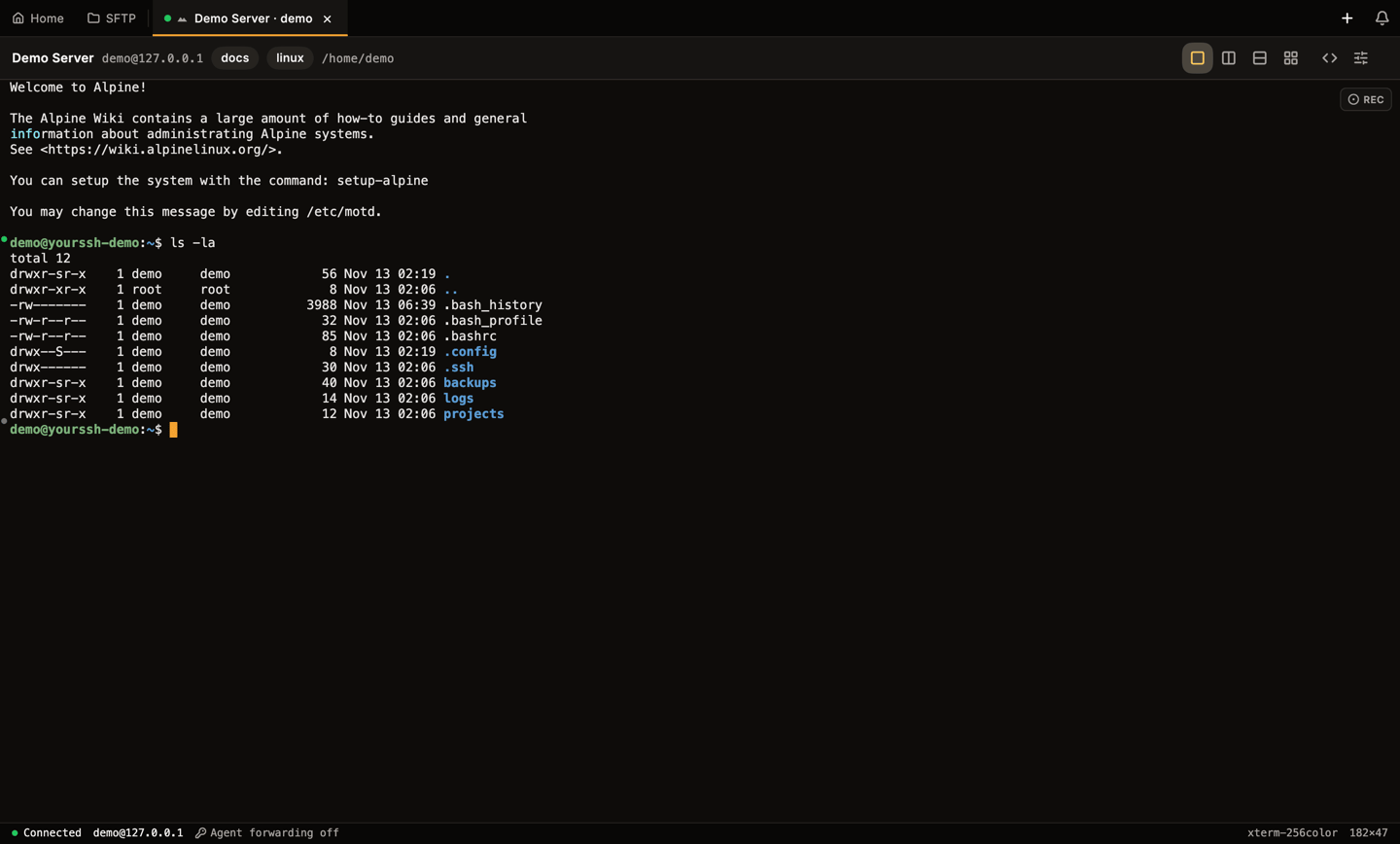
A connected session: tab bar, host chips and layout buttons in the header, and the status bar at the bottom.
Open a session
Click a host card on the Hosts dashboard, or open the card menu and choose Connect. A new tab opens and the connection starts. See Hosts for adding and editing hosts. You can also use the + button at the right end of the tab bar:- New SSH session opens the host picker.
- New local terminal opens a shell on your own machine (see Local terminal). Below it, Platform default shell and each detected shell open that shell directly.
Tabs
Each session is a tab in the top bar, next to the pinned Home and SFTP tabs. A tab shows:- A health dot (see below).
- An OS glyph for the detected remote system.
- The tab name, plus small dots for a colour tag and for an active recording.
Connection health dot
The dot comes from a latency ping sent over the live SSH connection on the keep-alive interval (Settings → Connection → Keep-alive interval).
The ping uses the open connection instead of a new one, so a 5-second timeout also catches half-open drops, where the network is gone but the shell has not closed yet. Hover the dot to see latency, uptime and how many times the session reconnected.
Manage tabs
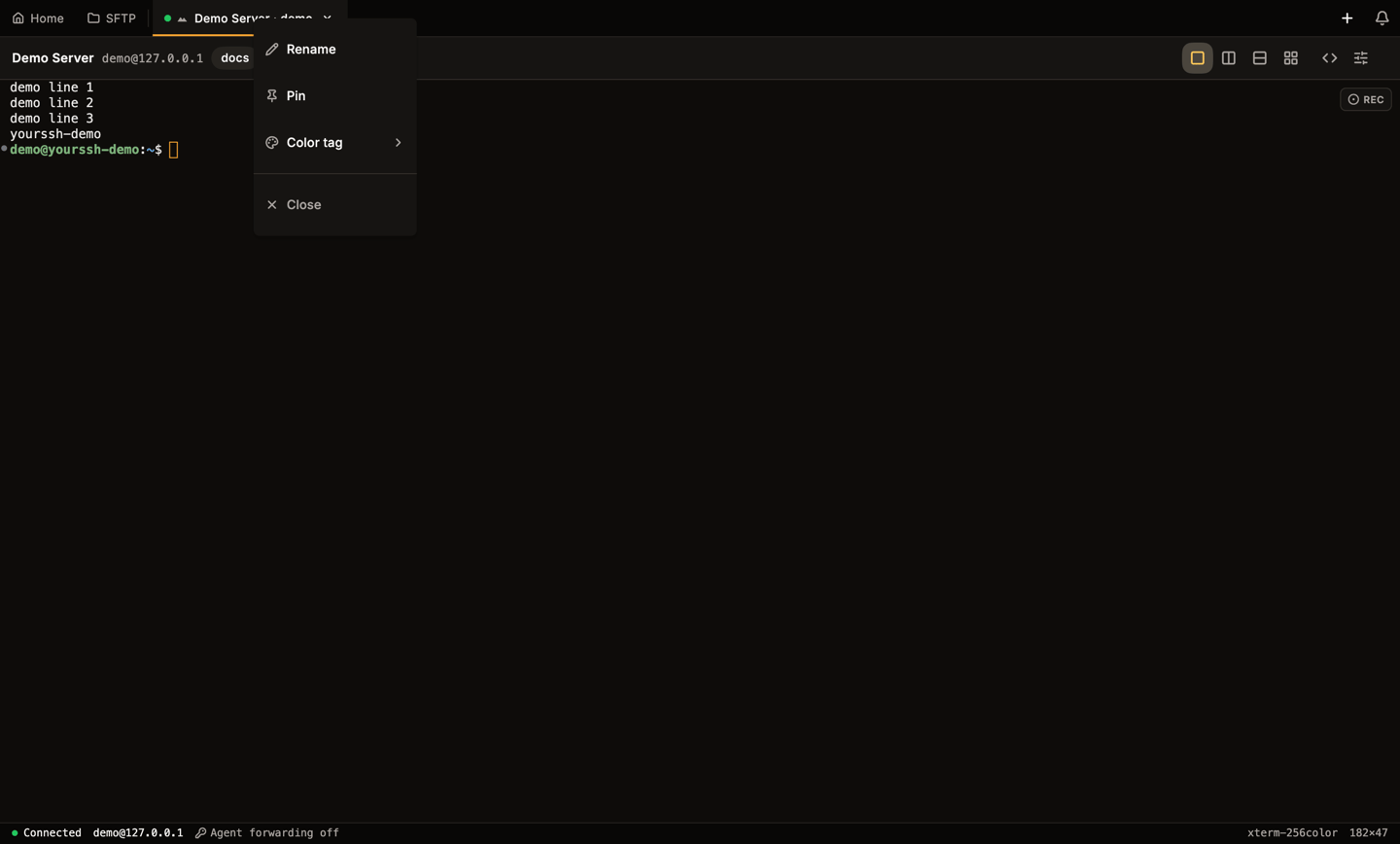
The tab context menu: Rename, Pin, Color tag and Close.
Notification bell
The bell at the right end of the tab bar collects in-app notifications behind an unread badge: sessions that drop unexpectedly (closing a tab yourself never notifies), new releases with inline Update and Details buttons, and alerts about agent forwarding, insecure credential storage and refusedyourssh:// links. Opening the panel marks everything read. Dismiss items one by one or use Clear all. Notifications live in memory and reset when you restart the app.
Terminal header and status bar
The header above the terminal has two sides:- Left: chips for the host name,
user@host, the first two tags and the current directory. The directory appears when shell integration is active. - Right: layout buttons (Single, Split Horizontal, Split Vertical, Quad), the Toggle Snippets Panel button (only while the Snippets plugin is on), the Toggle Terminal Settings button, and Broadcast when more than one pane is open. Depending on your setup you also see the network stats widget, Share (see Terminal sharing) and AI (see AI chat).
user@host, the jump chain (via …) when the host uses a connection chain, the agent forwarding state, the requested TERM, the size in columns × rows, and REC with an elapsed timer while you record.
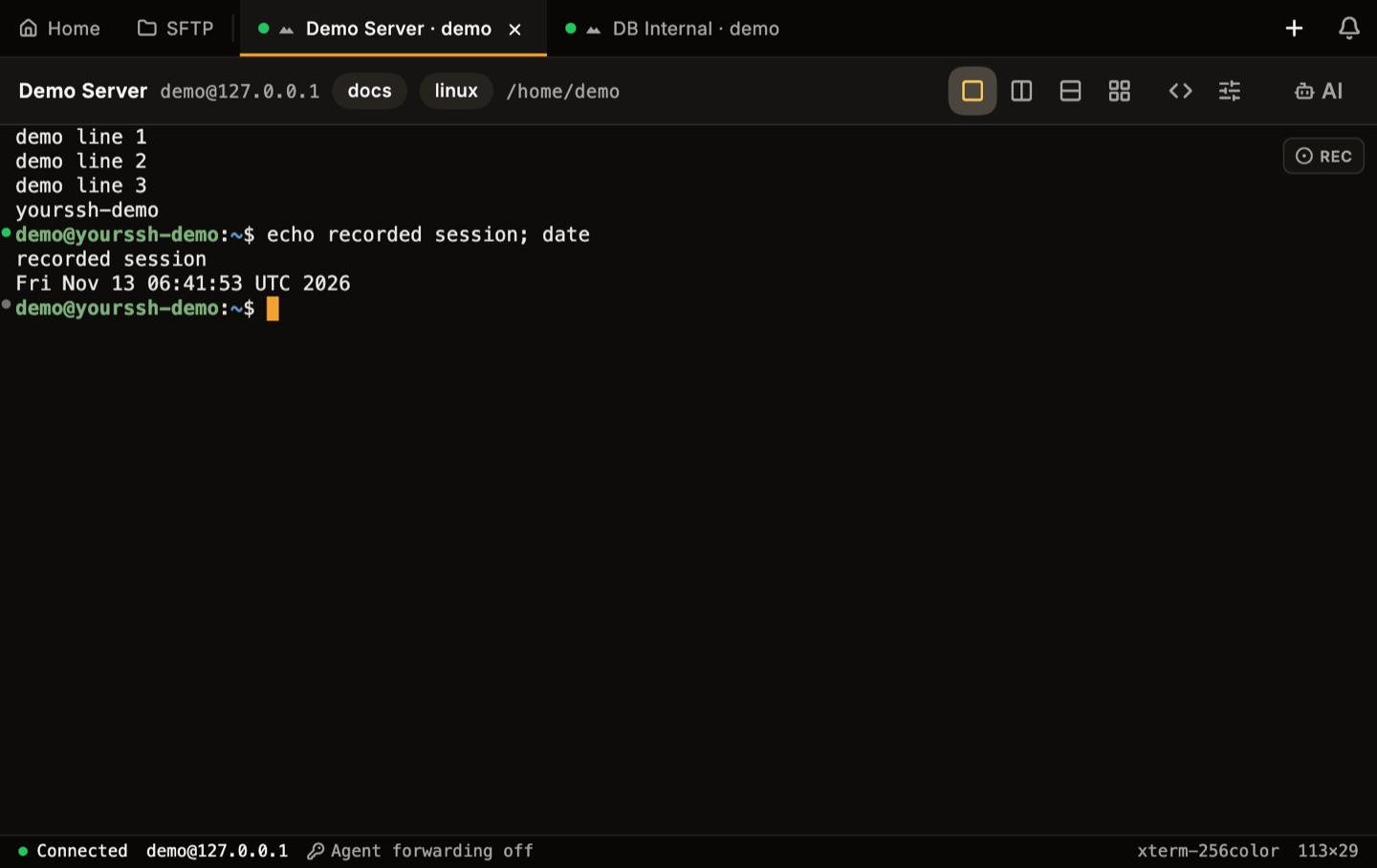
The terminal in a 900 × 600 window. The header and status bar still fit.
Split panes
Use the layout buttons in the header, or the shortcuts, to show more than one session at once:
Each pane shows one of your open sessions. A pane without a session shows No session in this pane. Open another session with + in the tab bar and it appears there. Click a pane to make it the active one.
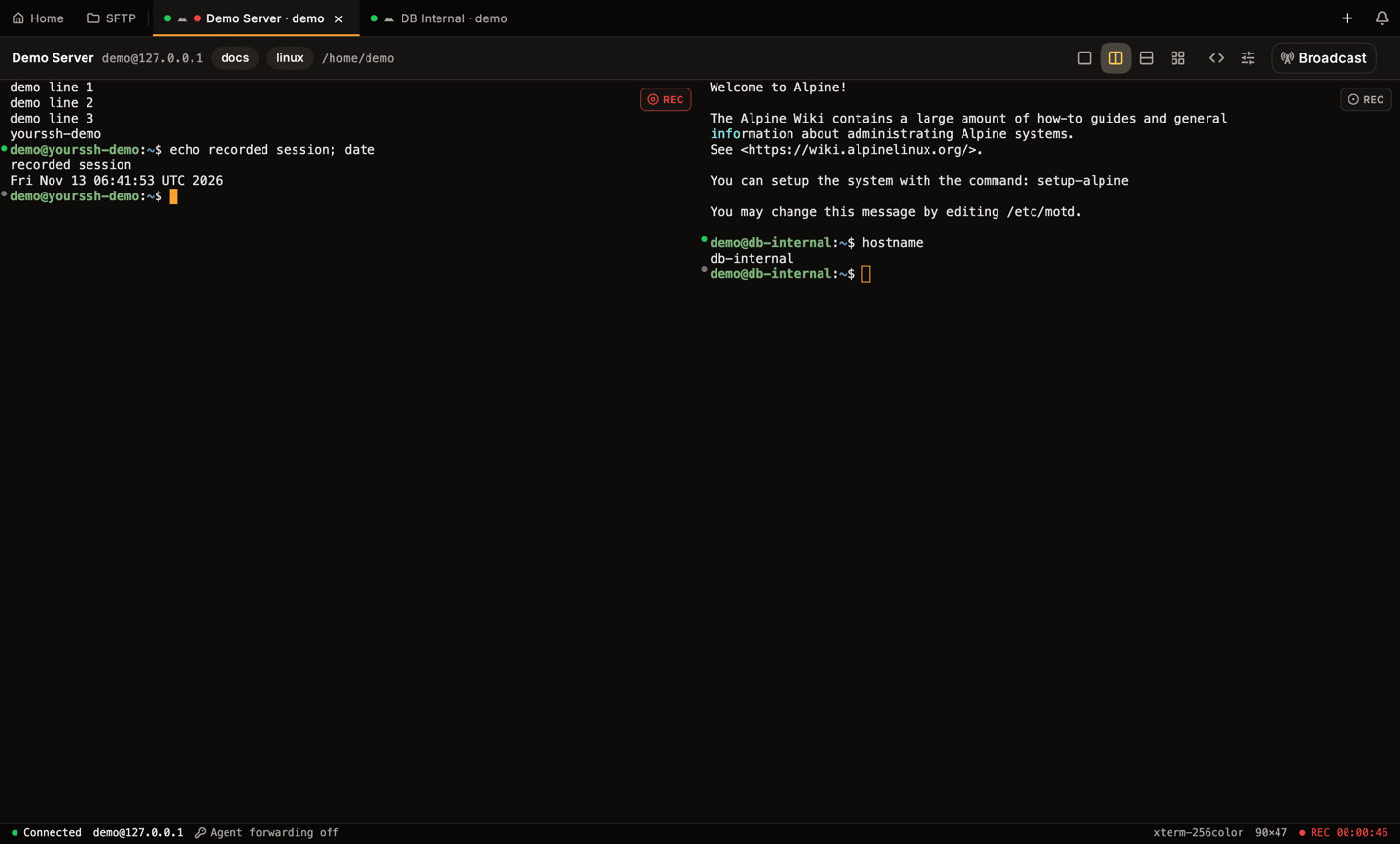
Split horizontal with two live sessions: Demo Server on the left, DB Internal on the right.
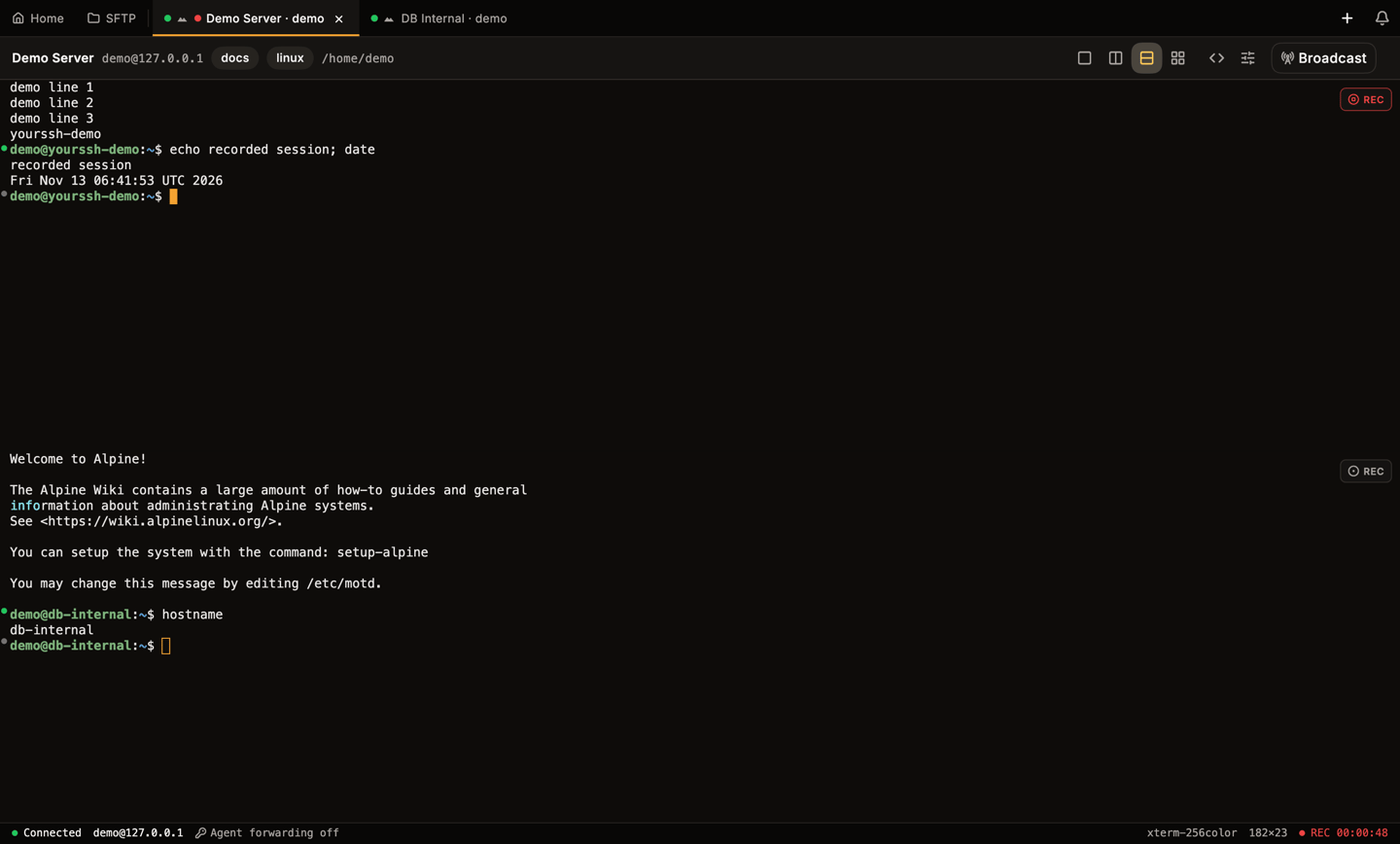
Split vertical with the same two sessions.
Broadcast
When two or more panes are open, Broadcast appears in the header. Turn it on, open the input bar, and every command you submit there goes to all panes. Each target gets its own entry in the audit log. Broadcast only affects the input bar. Keystrokes typed straight into a terminal still go to that pane alone. To run a command on many saved hosts without opening tabs, use Bulk actions.Search
PressCmd+F / Ctrl+F to open the search bar over the scrollback. Type text to highlight every match and see a counter such as 1 of 6. Press Enter for the next match and Shift+Enter for the previous one. The .* button switches to regular expressions. Press Esc or click the close button to leave search.
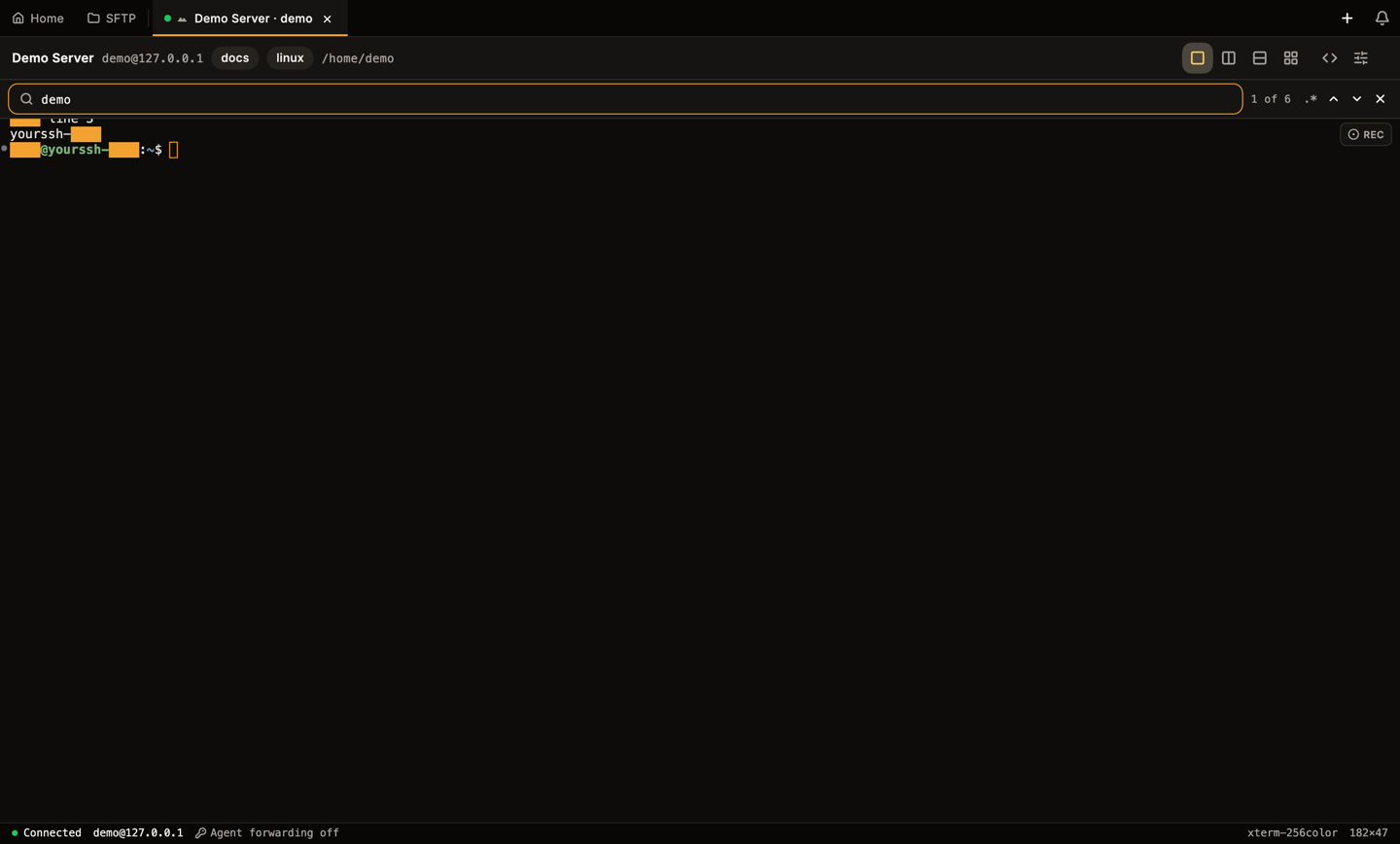
Search with six matches highlighted and the regex toggle at the right.
Input bar
The input bar is a command line at the bottom of the terminal with its own history and completion. Toggle it withCtrl+Shift+I.
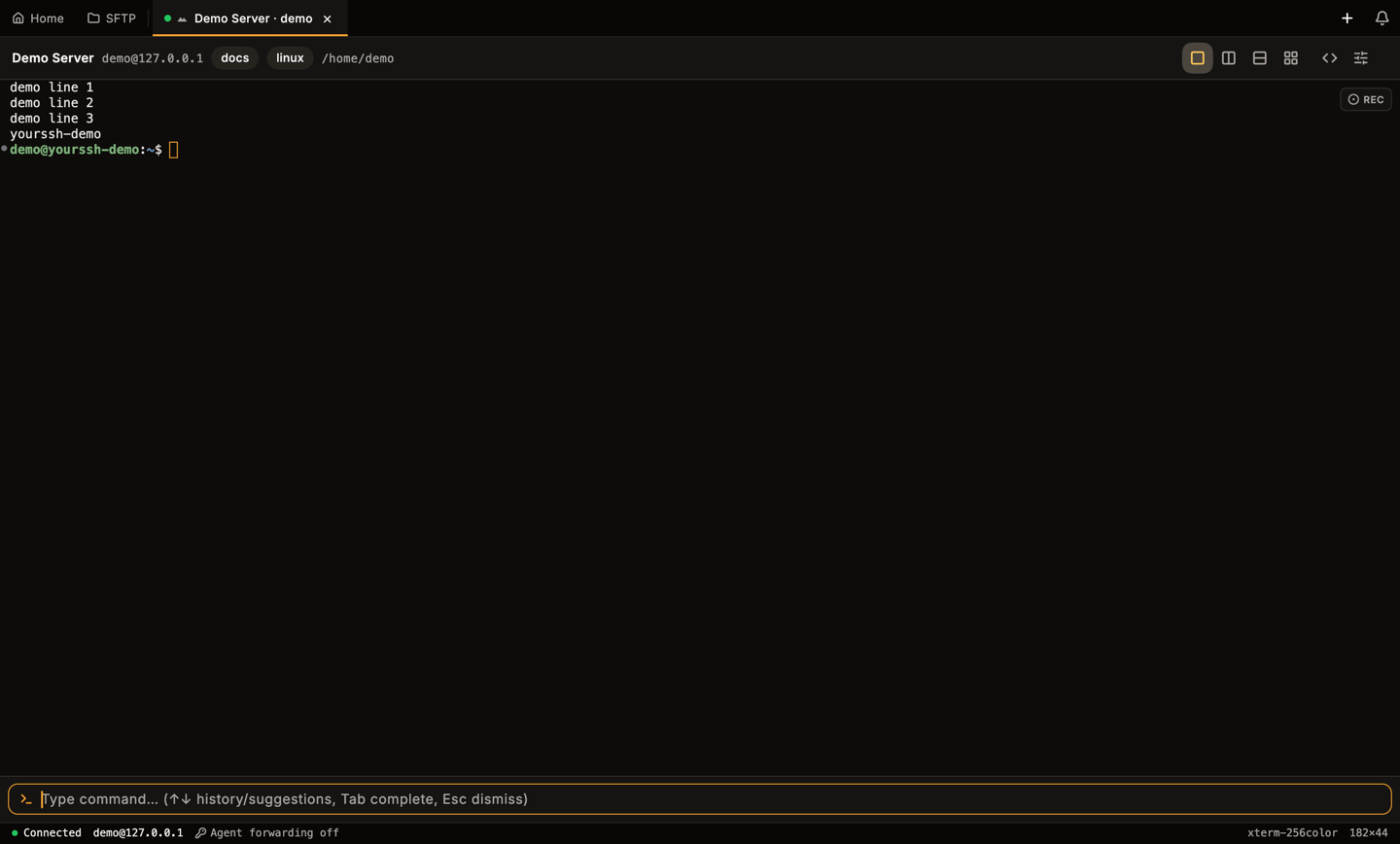
The input bar toggled on.
- Press
Enterto send the line to the session. - Press
↑and↓to move through the command history of the session. - Press
Tabto accept the highlighted suggestion. Use↑and↓to pick one while suggestions are showing. - Press
Escto close the input bar. - With shell integration active, a path typed after
cd,cat,lsand similar commands completes against the real remote directory, merged with your history. YourSSH reads that directory over SFTP.
Copy, paste and mouse
Select text by dragging. Double-click selects a word.
On Windows and Linux,
Ctrl+C copies only while text is selected, then clears the selection. Press it again to send Ctrl+C (SIGINT) to the running program as usual.
Right-click opens a menu with Copy, Paste, Select All and Reset Terminal. Copy is disabled when nothing is selected. If a full-screen program crashes and leaves the terminal looking frozen, choose Reset Terminal. It is the local equivalent of running reset.
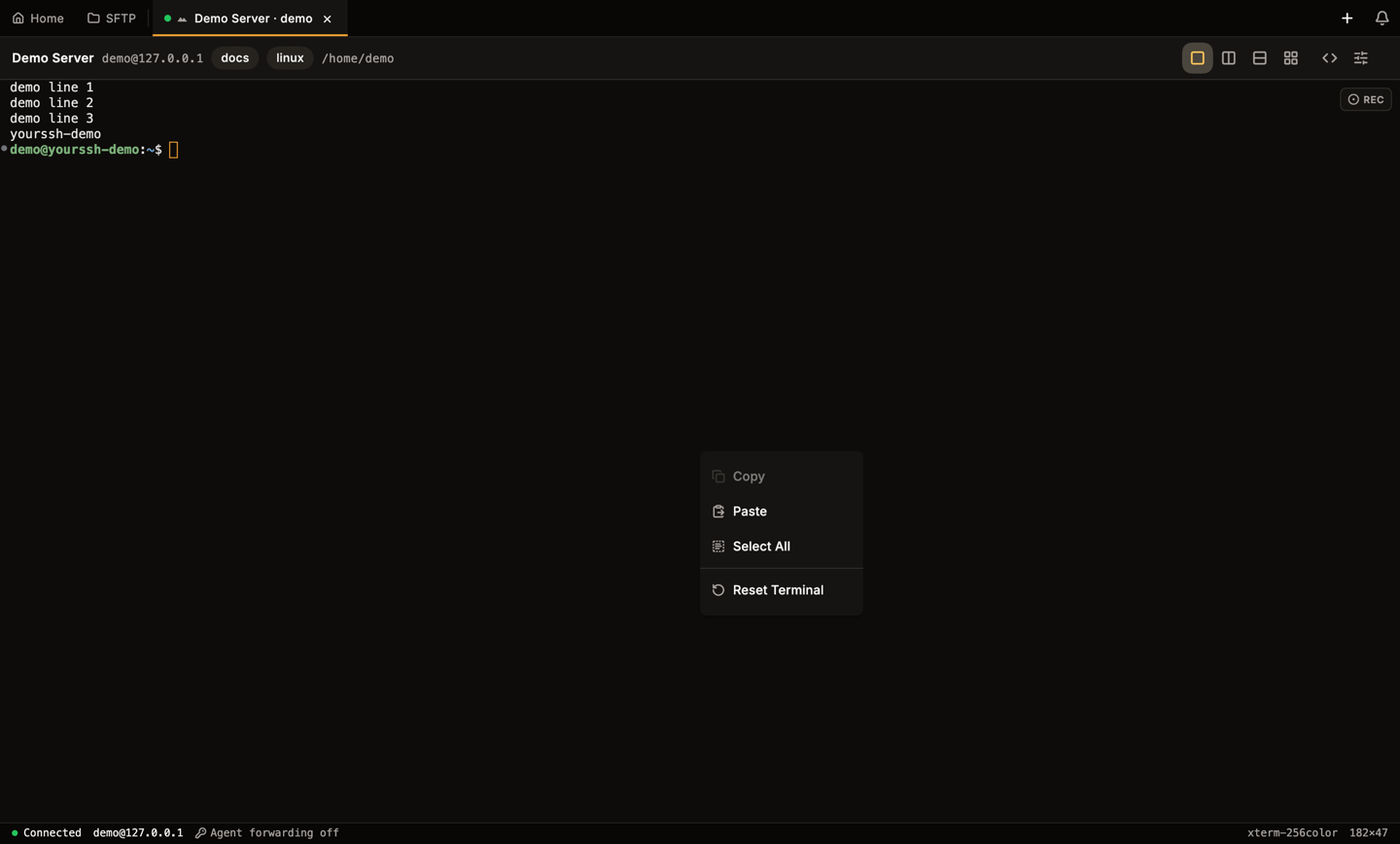
The terminal context menu.
mouse=a, htop, tmux with mouse on) keep receiving clicks instead of starting a selection or paste.
Scrolling
The scrollback holds 10 000 lines per session. While you are scrolled up, new output does not pull the view back down. Typing or pressingEnter returns to the bottom. Use Shift+PageUp and Shift+PageDown to page through the scrollback from the keyboard. In full-screen programs that use the alternate screen, these keys go to the program instead.
Inside full-screen programs that use the mouse, the wheel scrolls the program’s own view. Programs without mouse support, such as less and man, receive arrow keys instead.
Shell integration
On bash and zsh hosts, YourSSH installs a small prompt hook when you connect, so it can follow the remote shell through OSC 7 (working directory) and OSC 133 (command boundaries and exit status). The hook lives only in the live session. YourSSH never edits your.bashrc or .zshrc.
The setup is silent. YourSSH waits until the shell is at a prompt, then sends the hook through a hidden handshake, so nothing appears in your terminal or recordings. If YourSSH can’t confirm the shell is ready (an unusual shell, a full-screen program, or you started typing at once), it skips the hook for that session.
Shell integration gives you:
- Working directory in the header and in path completion.
- Command gutter. A thin strip at the left edge shows a dot beside each prompt: green for exit code 0, red for non-zero, grey for running or unknown. Click a dot to jump to that command.
- Jump to prompt.
Cmd+↑/Ctrl+↑andCmd+↓/Ctrl+↓scroll to the previous and next prompt. - Path completion in the input bar.
- For every host: Settings → Connection → Shell Integration.
- For one host: the Shell integration switch in the host editor.
Keyword highlighting
Keyword highlighting tints matching text in every terminal session, for example Error, Fail or Warning. Turn it on or off with the Enable switch under KEYWORD HIGHLIGHTING in the terminal settings panel, or with Enable keyword highlighting in Settings → Keyword highlighting. In Settings → Keyword highlighting you can add, edit and delete rules. A rule has a Label, a Pattern, Regex and Case-sensitive options, and a Foreground and Background colour (pick at least one).Appearance and themes
Click the Toggle Terminal Settings button (sliders icon) in the header to open the appearance panel beside the terminal. It holds the Color theme, the Font size (it previews live while you drag) and the Terminal font, plus the keyword highlighting switches. The same controls exist in Settings. Click the colour theme to open Terminal Theme, a grid of 46 themes with previews. YourSSH Amber is the default. Others include YourSSH Dark, Dracula, Tokyo Night, Nord, Solarized, Gruvbox, Catppuccin and Monokai, in dark and light variants.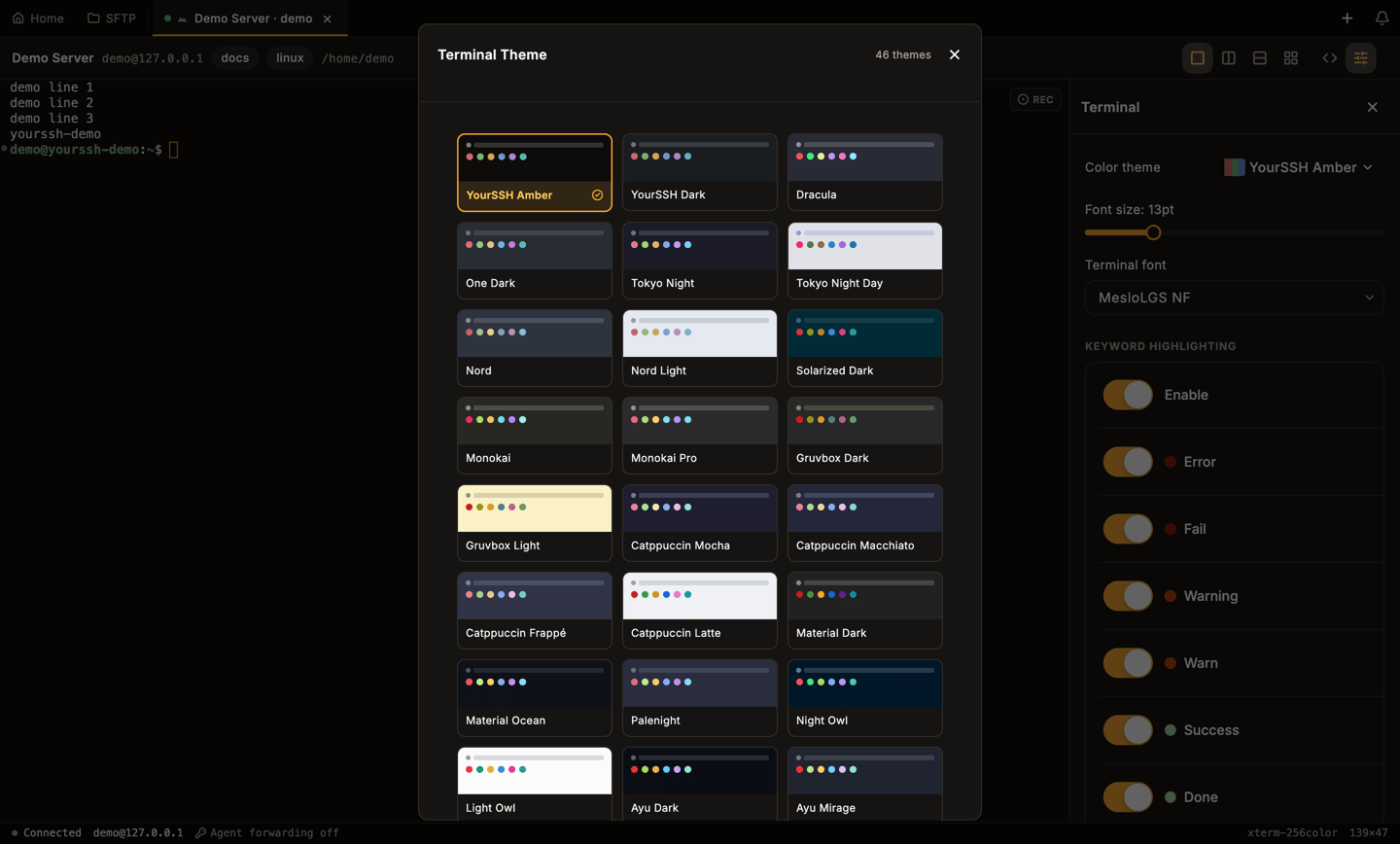
The theme picker opened from the terminal settings panel.
Snippets panel
Click the Toggle Snippets Panel button (the<> icon) in the header to open your saved snippets beside the terminal. The button appears while the Snippets plugin is enabled. You can browse and search them, and run one against the active pane without leaving the terminal. Only one side panel is open at a time, so opening Snippets closes the appearance panel. Create and manage snippets in Snippets.
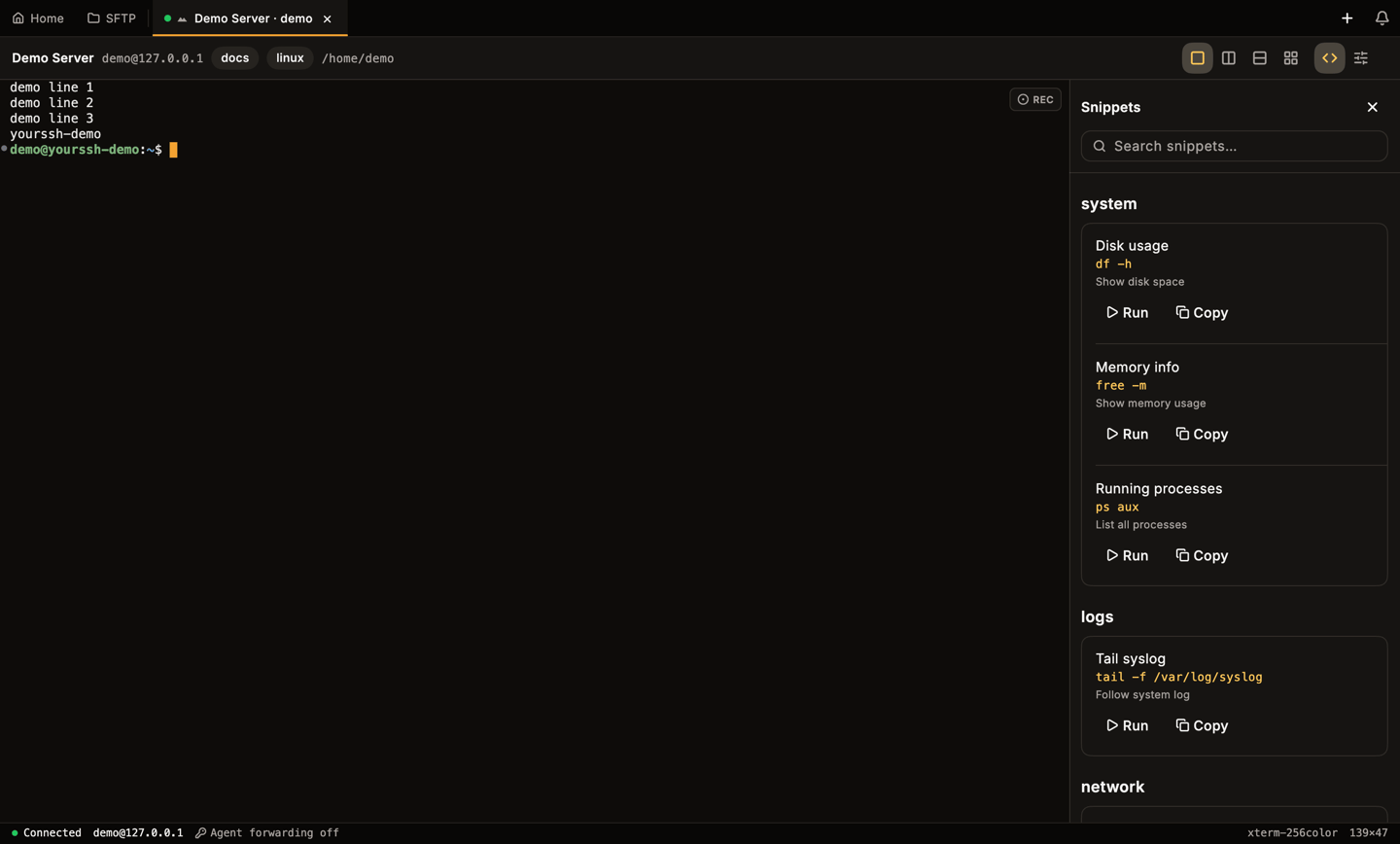
The snippets panel next to a session.
Recording
Click REC at the top right of a terminal to record the session as an asciicast file. The status bar then shows the elapsed time. Click again to stop. See Session recording for the library, playback and secret masking.Auto-reconnect and tmux
Set these in Settings → Connection:- Auto-reconnect reconnects when a connection drops. Max reconnect attempts accepts 1, 3, 5, 10 or Unlimited.
- Keep-alive interval sets how often YourSSH pings the server (10 s, 30 s, 60 s or Off). It also drives the health dot.
- Tmux Integration attaches to a tmux session on connect. It needs tmux on the server. A host can override the global value with tmux: follow global, always on or always off in the host editor.
Local terminal
Open Local Terminal in the sidebar, or choose New local terminal from the + menu, to start a shell on your own machine. Local shells are normal tabs. You can split them, record them and place them next to SSH panes. If the shell exits, the pane offers Restart shell, which relaunches the shell the tab started with. YourSSH detects the shells you have installed:- Windows: PowerShell, Command Prompt, PowerShell 7 (
pwsh), Git Bash and one entry per WSL distribution. - macOS and Linux: your
$SHELLand everything listed in/etc/shells.
Command palette
PressCmd+K / Ctrl+K to open the command palette. It searches saved hosts, navigation sections and app actions such as New Host, Import SSH Config and Join Shared Session (when sharing is available). Type to filter and press Enter to run the selected item.
Keyboard shortcuts
The defaults below can be changed in Settings → Keyboard → Configure.
Other keys in the terminal:
When a key combination is a registered shortcut, YourSSH keeps it from reaching the shell.
Related pages
Terminal sharing
Let teammates watch a live session.
Recording
Record sessions to asciicast files.
Snippets
Save and run reusable commands.
SFTP
Move files next to your terminal.