

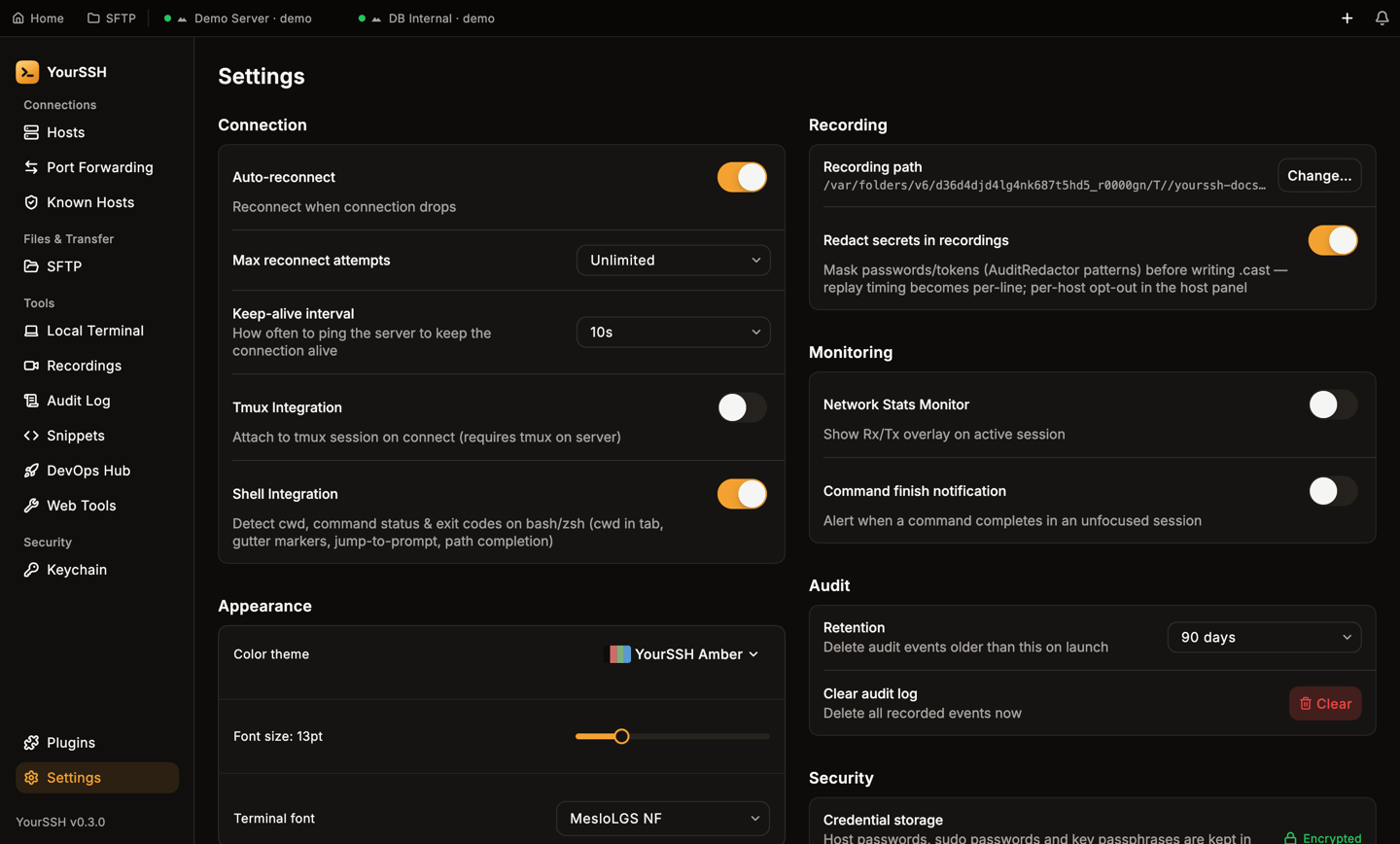
Settings in a wide window: Connection, Appearance and Terminal on the left; Recording, Monitoring, Audit and Security on the right.
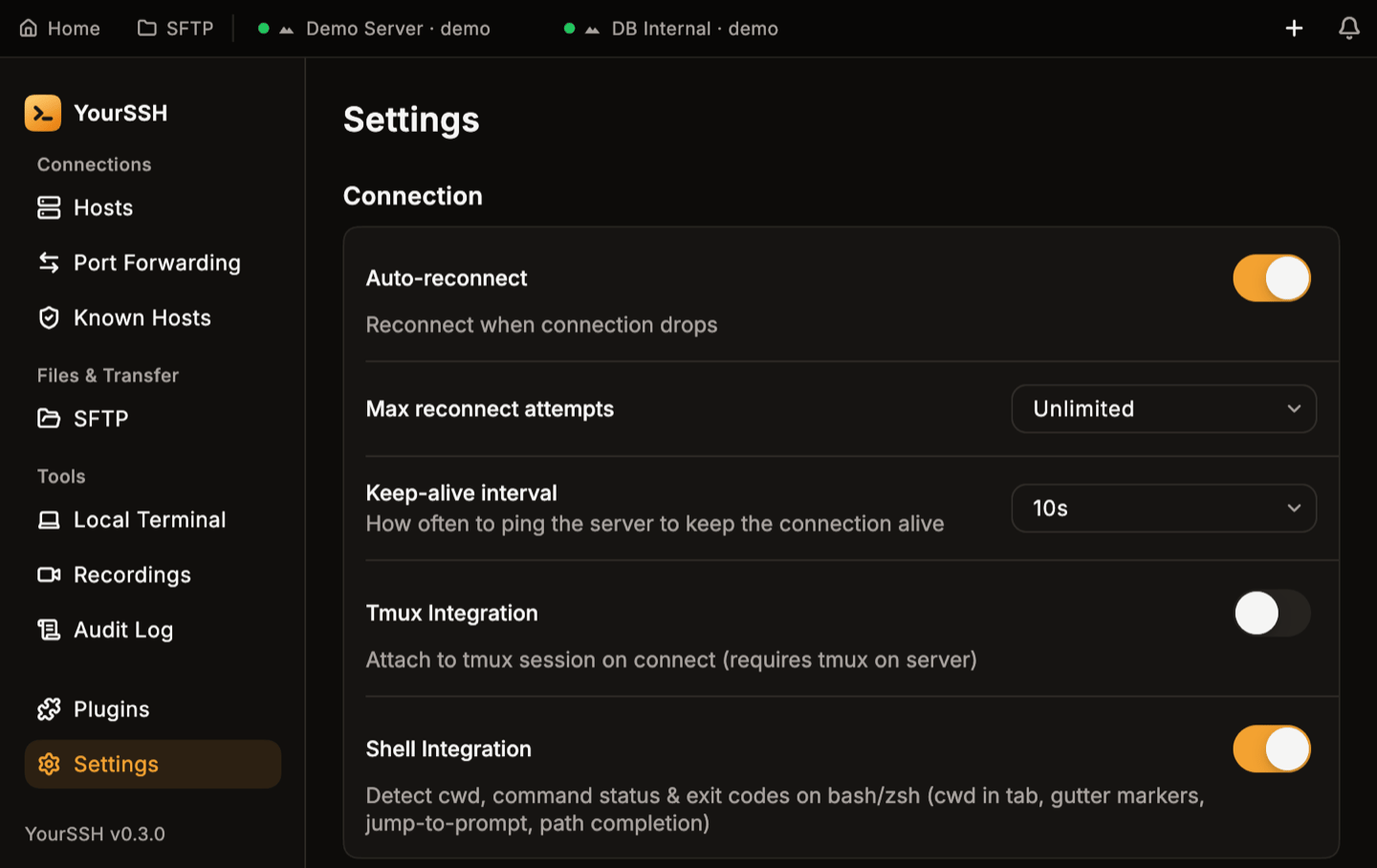
At the 900x600 minimum window size, Settings collapses to a single column.
Connection
Appearance
- Color theme: pick a terminal theme from the built-in list.
- Font size: a slider, 13pt by default.
- Terminal font: choose the terminal font.
Terminal
- Terminal emulation type: the
TERMvalue reported to servers,xterm-256colorby default. It applies to new SSH connections. - Default local shell: the shell new local terminals use. Platform default picks your system’s shell.
- Add custom shell… adds your own entry. Enter a Display name, an Executable path and optional Arguments (space-separated, no quoting).
Keyword highlighting
Tints matching text in every terminal session. Turn the whole feature on or off with Enable keyword highlighting. The list ships with rules for words such aserror, fail, warning, success, done and OK, each with its own on/off toggle. Use the pencil icon to edit a rule, the trash icon to delete it, and Add rule to create one with a label, a pattern and a color. A rule can match literal text or a regular expression. You can have up to 20 rules.
Recording
- Recording path: the folder for
.castfiles. Click Change… to pick another folder. - Redact secrets in recordings: mask passwords and tokens before they’re written. On by default.
Monitoring
- Network Stats Monitor: show a Rx/Tx overlay on the active session.
- Command finish notification: alert you when a command finishes in a session that isn’t focused.
Audit
- Retention: delete audit events older than this on launch. Choose
30 days,90 days(the default),365 daysor Keep forever. - Clear audit log: click Clear to delete all events now, after a confirmation.
Security
Credential storage shows where YourSSH keeps host passwords, sudo passwords and key passphrases: the macOS Keychain, the Windows Credential Manager or the system keyring on Linux.- Encrypted means the system credential store holds every credential. This is the normal state.
- Plain text means the store refused one or more credentials, so YourSSH saved them as readable text in its preferences file. The row shows how many, and Retry tries to move them back into the store.
Sync
Choose between two tabs: Cloud Sync (your own Supabase project) and P2P Transfer (a one-time transfer over your network). Both are covered in Sync.AI providers
Enter an API key and choose a Model for each provider: Anthropic, OpenAI and Google Gemini. A check mark shows when a key is configured, and the eye icon reveals or hides a key while you type. YourSSH stores the keys in the system credential store. See AI chat.Keyboard
Click Configure next to Keyboard Shortcuts to open the shortcuts screen. Click a shortcut, or its pencil icon, then press the new key combination. PressEsc to cancel. Changes are saved immediately.
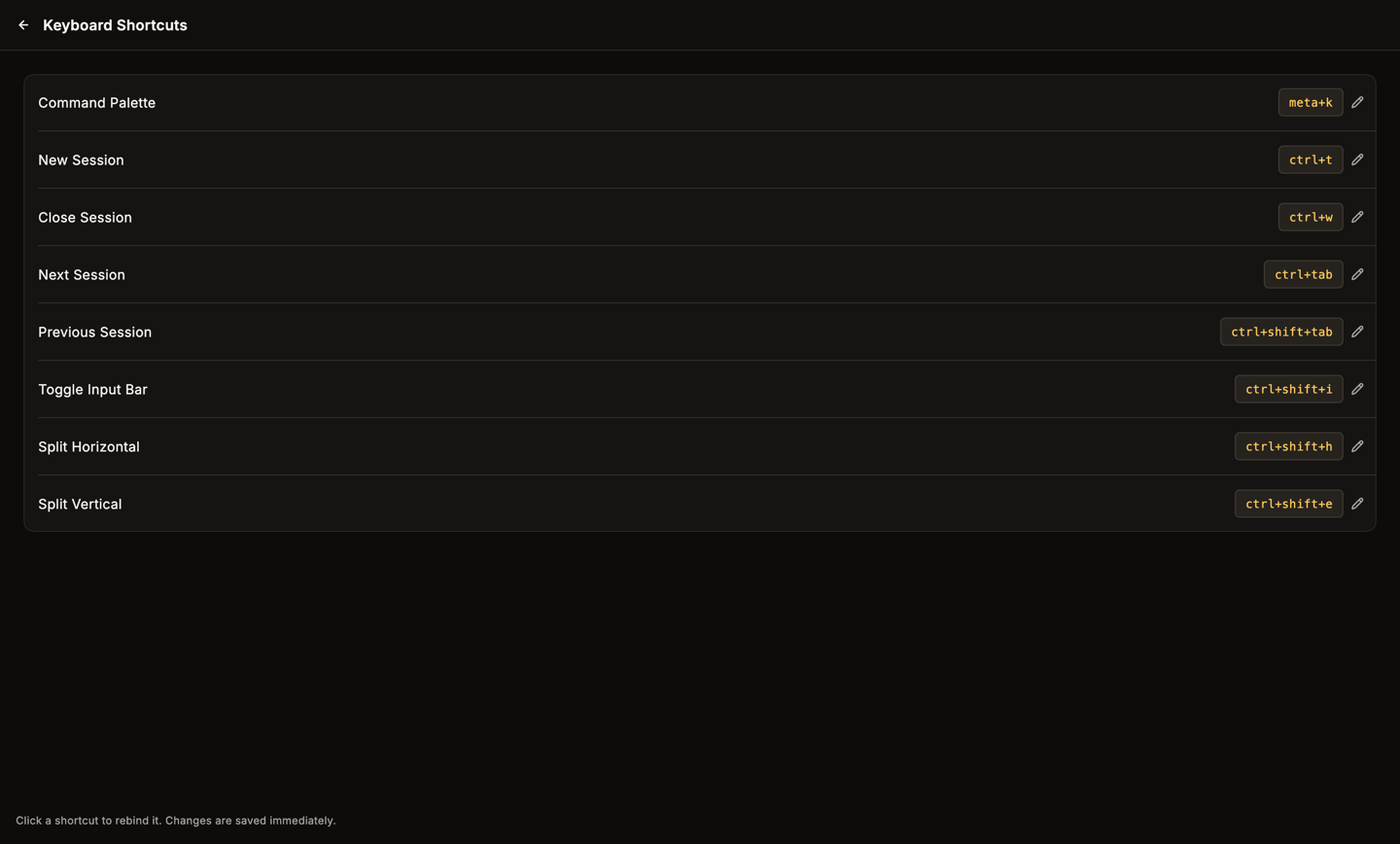
The Keyboard Shortcuts screen. Shortcuts are shown as stored; meta is Cmd on macOS.
Command palette
PressCmd+K / Ctrl+K anywhere in the app to open the command palette. It searches your hosts, sections of the app, snippets and app actions, so you can jump to a host or screen from the keyboard.
Updates
Shows the Current version and a Status line. YourSSH checks GitHub for a newer stable release at launch and periodically while it runs. Click Check for updates to check right now. When a newer version exists, Download & install appears. Updates are never silent. YourSSH downloads the build for your operating system and hands it to the system installer, and you finish the install yourself:- macOS: opens the disk image. Drag the app to Applications.
- Windows: launches the installer.
- Linux: opens the package or archive with your default handler.
Notifications
The bell at the top right of the window collects things that need your attention:- A new YourSSH version, with Update and Details buttons.
- A session that dropped unexpectedly, such as Connection closed by the server.
- A warning when a credential had to be stored without encryption.
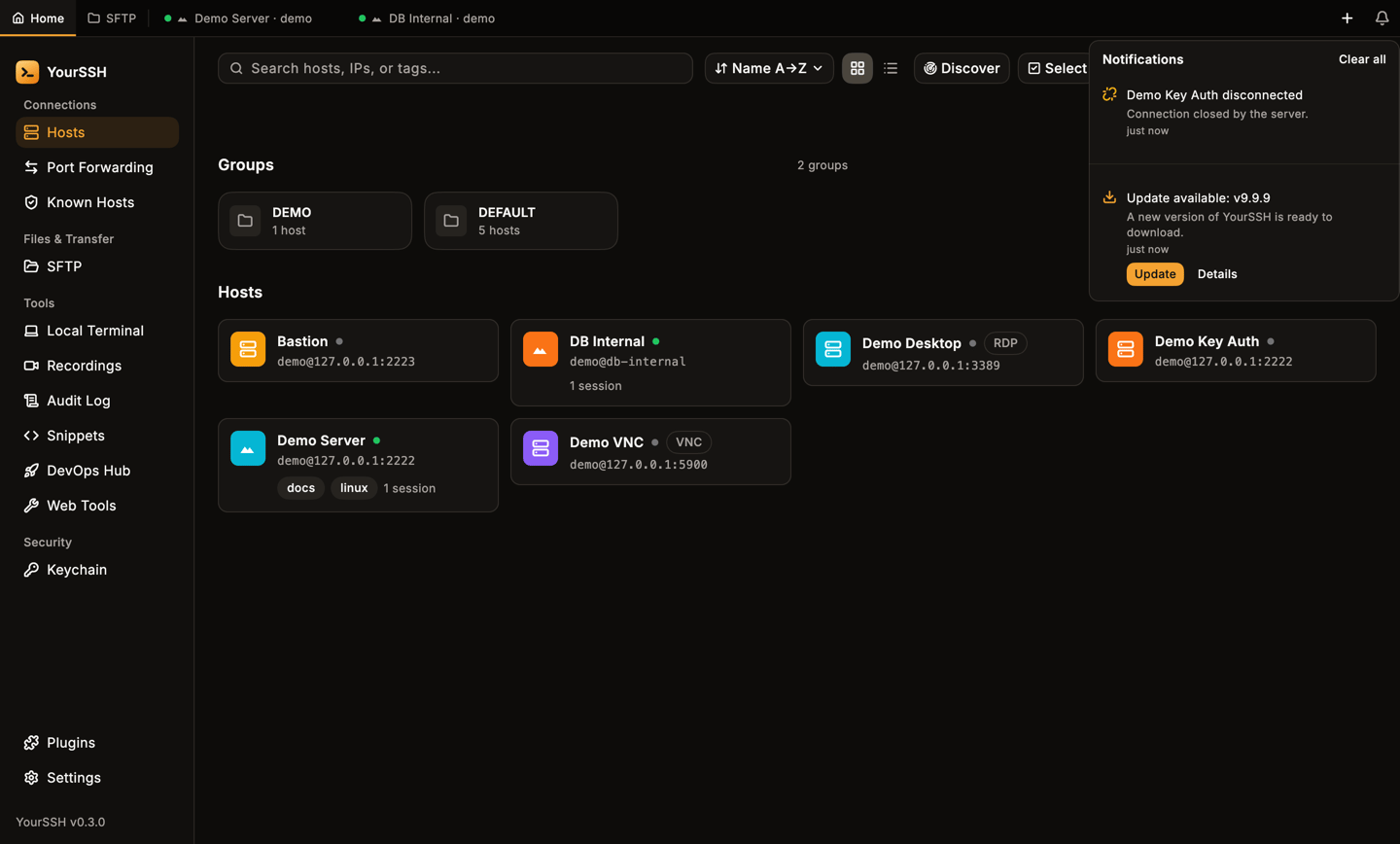
The notification panel with a disconnected session and an available update.